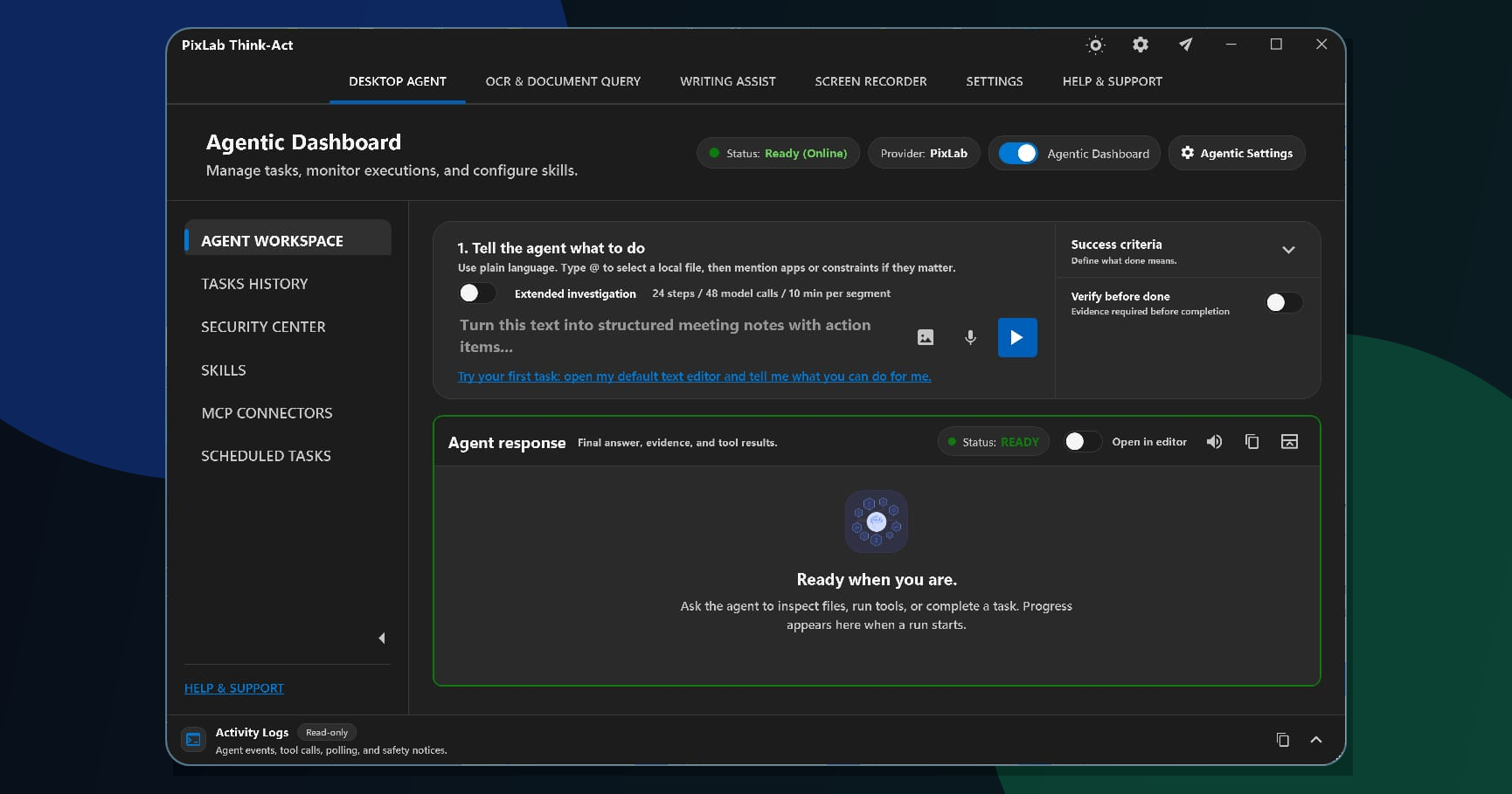
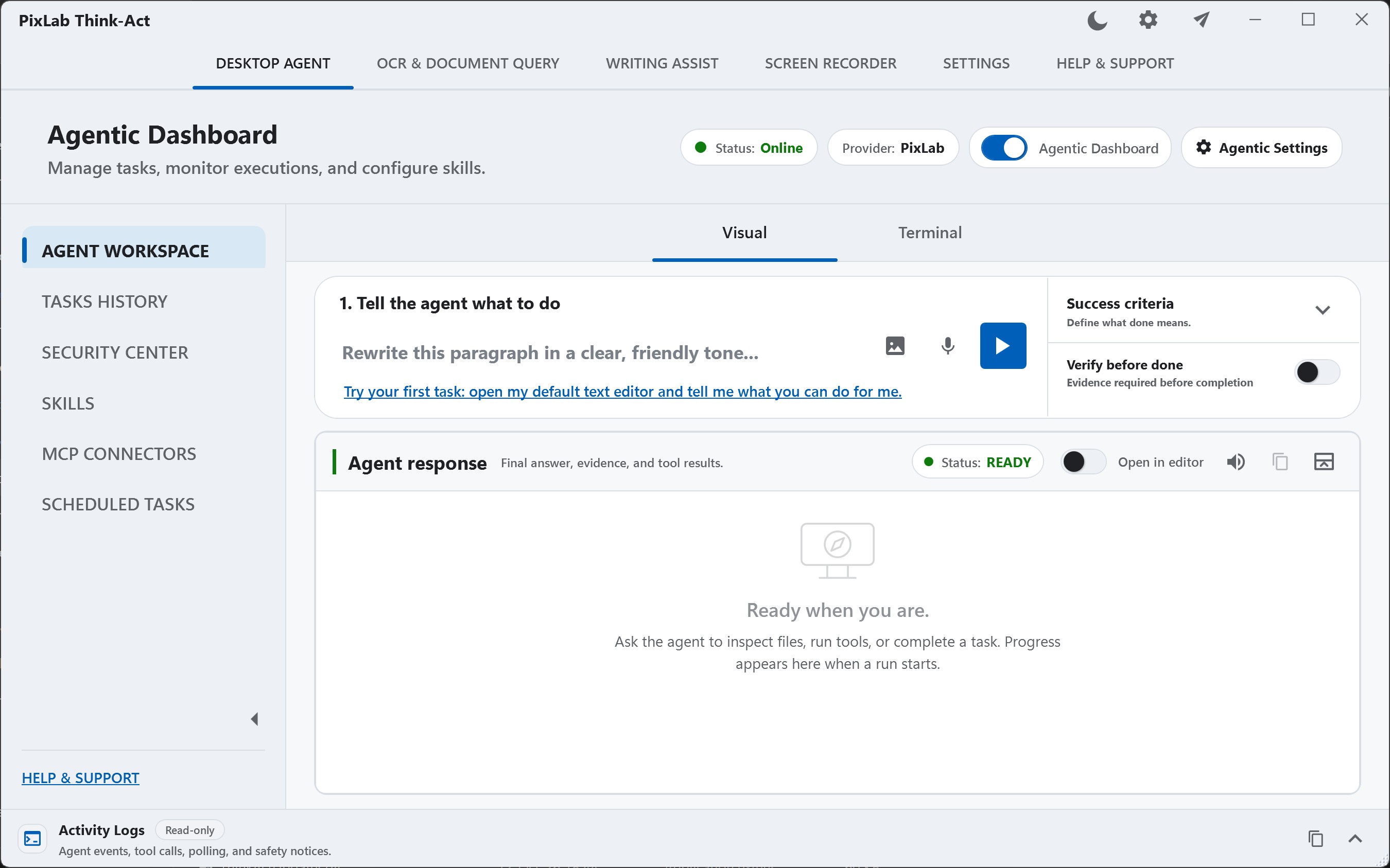
Desktop automation is most useful when it removes a repeated step without hiding what happened. Think-Act by PixLab brings writing assistance, OCR and document intelligence, screen recording, reusable Skills, connected tools, and a Desktop Agent into one application.
Think-Act is free to install and try. The current installer supports 64-bit Windows 10 and Windows 11; macOS is planned for Q1 2027. Use the Think-Act downloads page for current availability and installation requirements.
Overview
What You Will Learn
- Choose between a focused tool and a multi-step Desktop Agent task.
- Start with a bounded use case whose result can be checked.
- Use writing, document intelligence, and recording without a connector.
- Turn a useful method into a reusable Skill.
- Add a trusted MCP connector only when external capability is required.
- Apply approval and review boundaries to consequential actions.
For the complete product scope, see the Think-Act feature overview.
How Think-Act Fits Desktop Work
Think-Act combines focused tools with an agent workspace, so a simple task does not need to become an elaborate automation.
| Task | Start with | Move to the Desktop Agent when |
|---|---|---|
| Rewrite, summarize, translate, or draft text | Writing Assistant | The writing depends on several documents, checks, or supported tools. |
| Extract information from a screenshot, scan, image, or PDF | OCR and Document Intelligence | The extracted content must feed a multi-step review or follow-up workflow. |
| Capture a process or bug reproduction | Screen Recorder | The recording needs to become reviewed documentation, a checklist, or another deliverable. |
| Repeat a proven method | Skill | The method also needs a connector to act in another system. |
| Work with files, apps, APIs, databases, or services | Configured connector or tool | The task requires coordinated steps, context, permission, and final review. |
The Think-Act productivity guide provides more examples for choosing a focused tool before widening a workflow.
Step 1
Download and Install Think-Act
Use the official Think-Act downloads page to confirm the supported platform and current installation steps. The current Windows requirements are:
- 64-bit Windows 10 or Windows 11.
- A PixLab account to activate the application and connect it to the available plan and usage limits.
- Node.js, Python, or another runtime only when a selected local MCP server requires it.
- A trusted Windows machine where you can review installer publisher and security settings.
You can also download the current Windows installer directly from PixLab. Avoid copies re-hosted by unknown third parties and verify PixLab or Symisc Systems if Windows displays publisher information.
Step 2
Pick One Workflow with a Visible Finish Line
The best first task is familiar, bounded, and easy to review. Avoid starting with a broad request such as “automate my work.” Choose an input and a result you can compare directly.
Define a correct result before running the task. A report summary might require five findings, three follow-up actions, and references to the source. A file task might require a dry run or proposed-change list before anything is modified.
Step 3
Use Focused Tools Before Adding Connectors
Writing, OCR, document work, and screen recording do not require MCP connectors by default. Start with the capability that directly matches the task.
Writing and Communication
Use the Writing Assistant to rewrite selected text, draft from a prompt, improve structure, summarize, translate, or adjust tone. Prompt-only mode is useful when clipboard content should not be included.
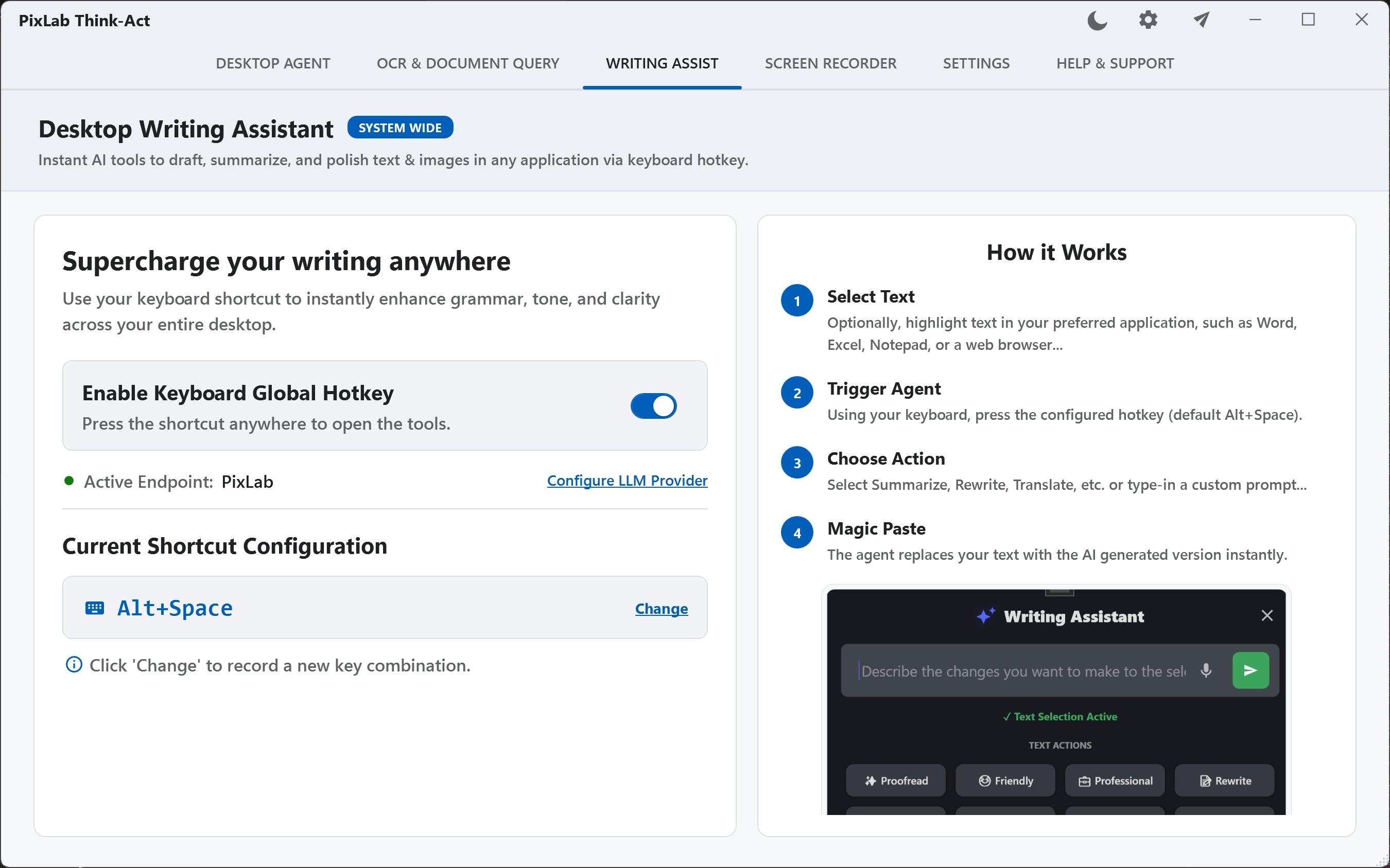
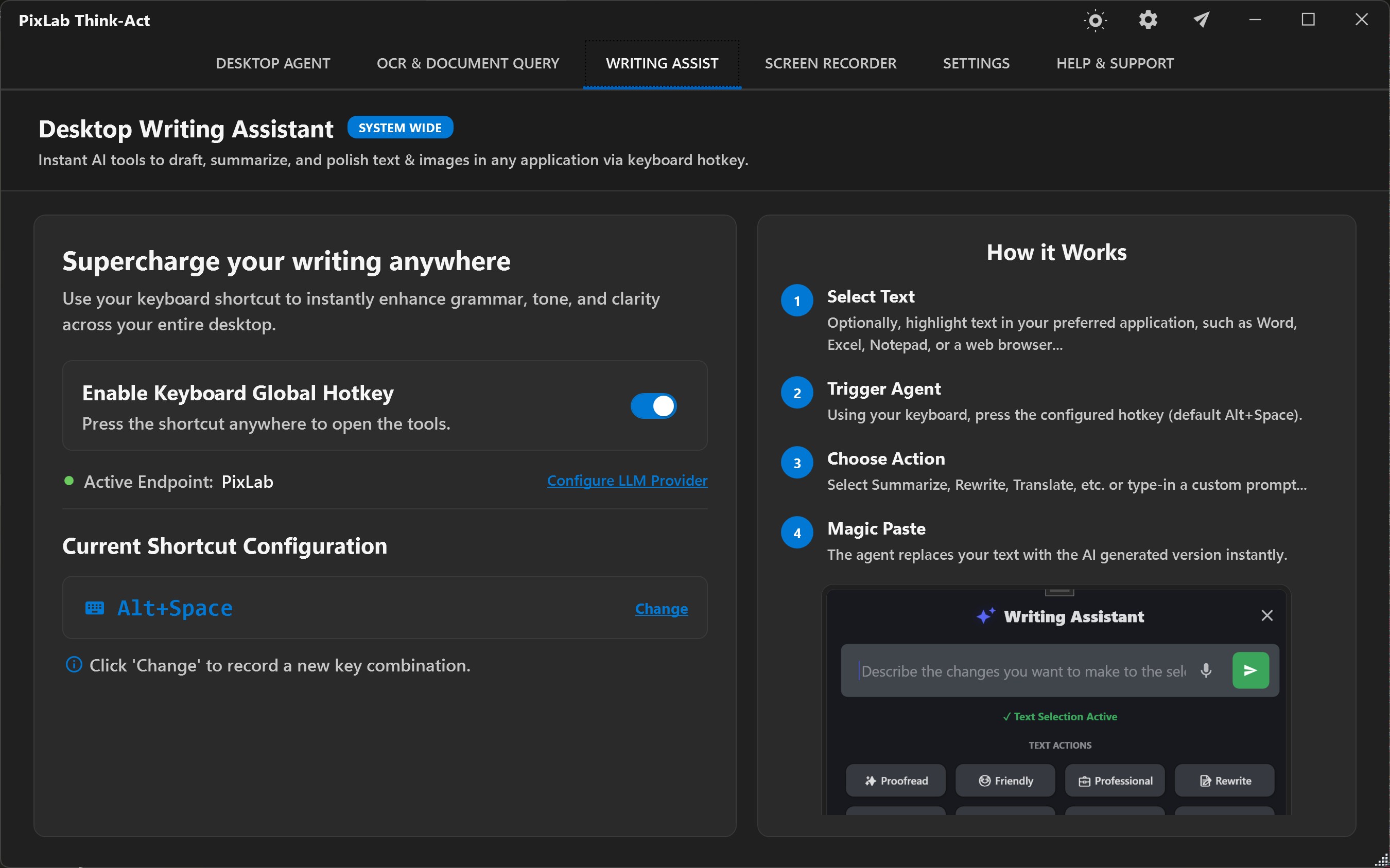
Useful tasks include customer replies, internal updates, meeting summaries, proposals, release notes, executive briefs, bug reports, translations, and plain-language rewrites. Treat generated text as a draft until it has been reviewed for its audience and consequences.
OCR and Document Intelligence
Use OCR and Document Intelligence when information is trapped in a screenshot, scan, image, or supported PDF. Extract the relevant content, organize it, and compare important names, dates, totals, clauses, and requirements with the source.
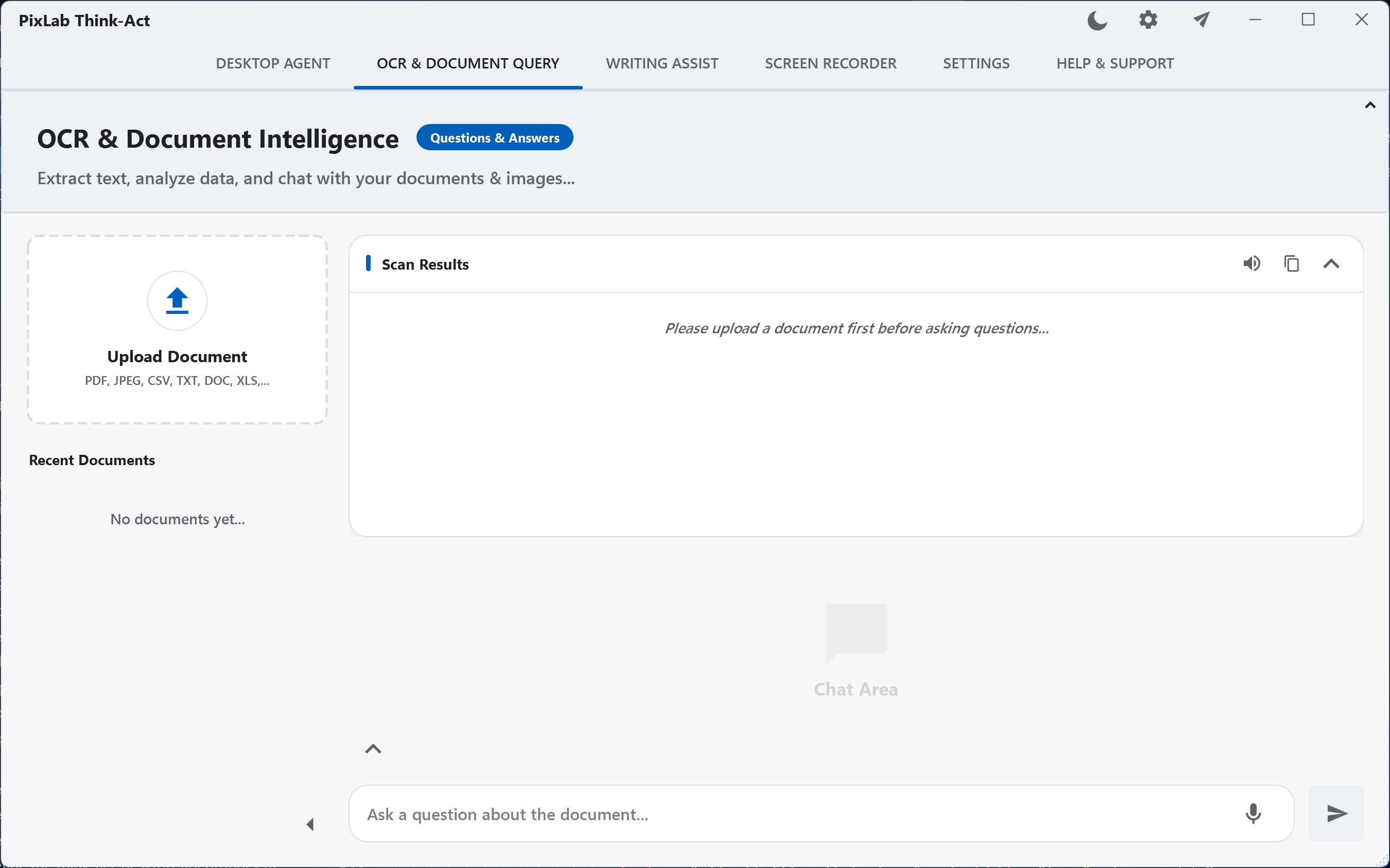
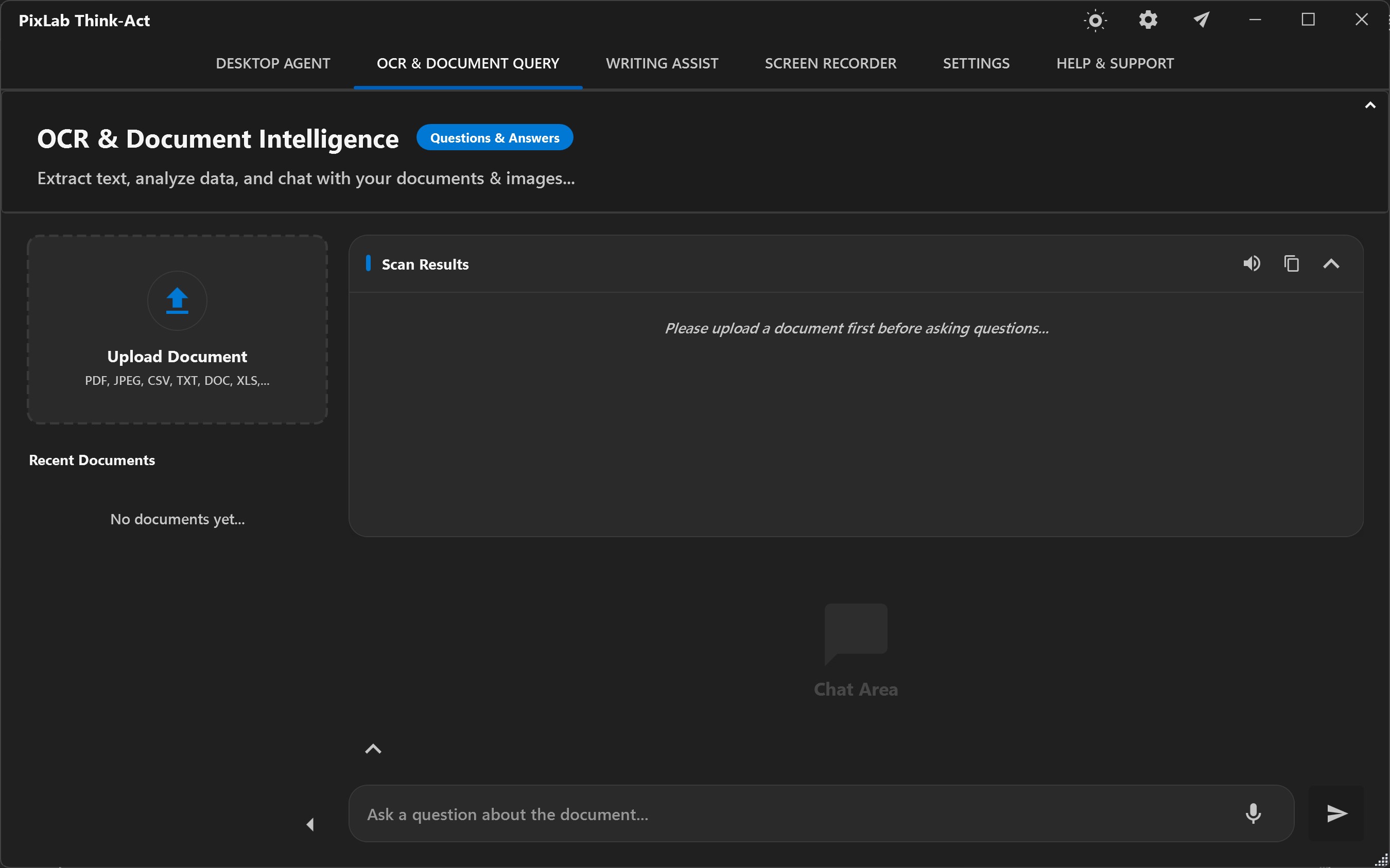
Useful workflows include invoice and receipt extraction, supplied contract or policy summaries, turning image-based information into a table, preparing review questions, and converting screenshots into editable text. Verify consequential details against the source.
Screen Recording and Process Documentation
Use the Screen Recorder when sequence and visual context matter. A recording can become source material for a transcript, bug reproduction, procedure draft, training note, or reviewed SOP.
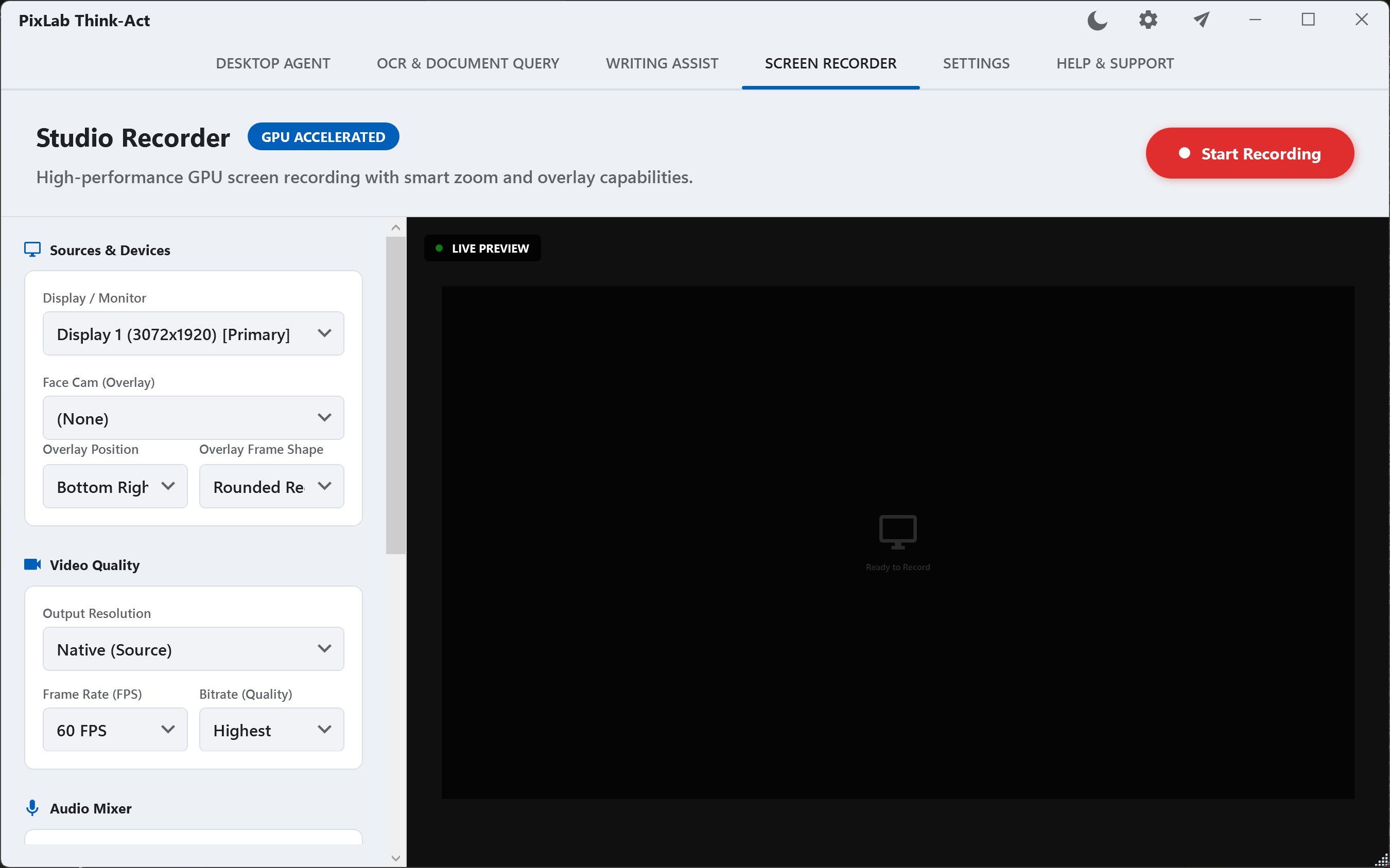
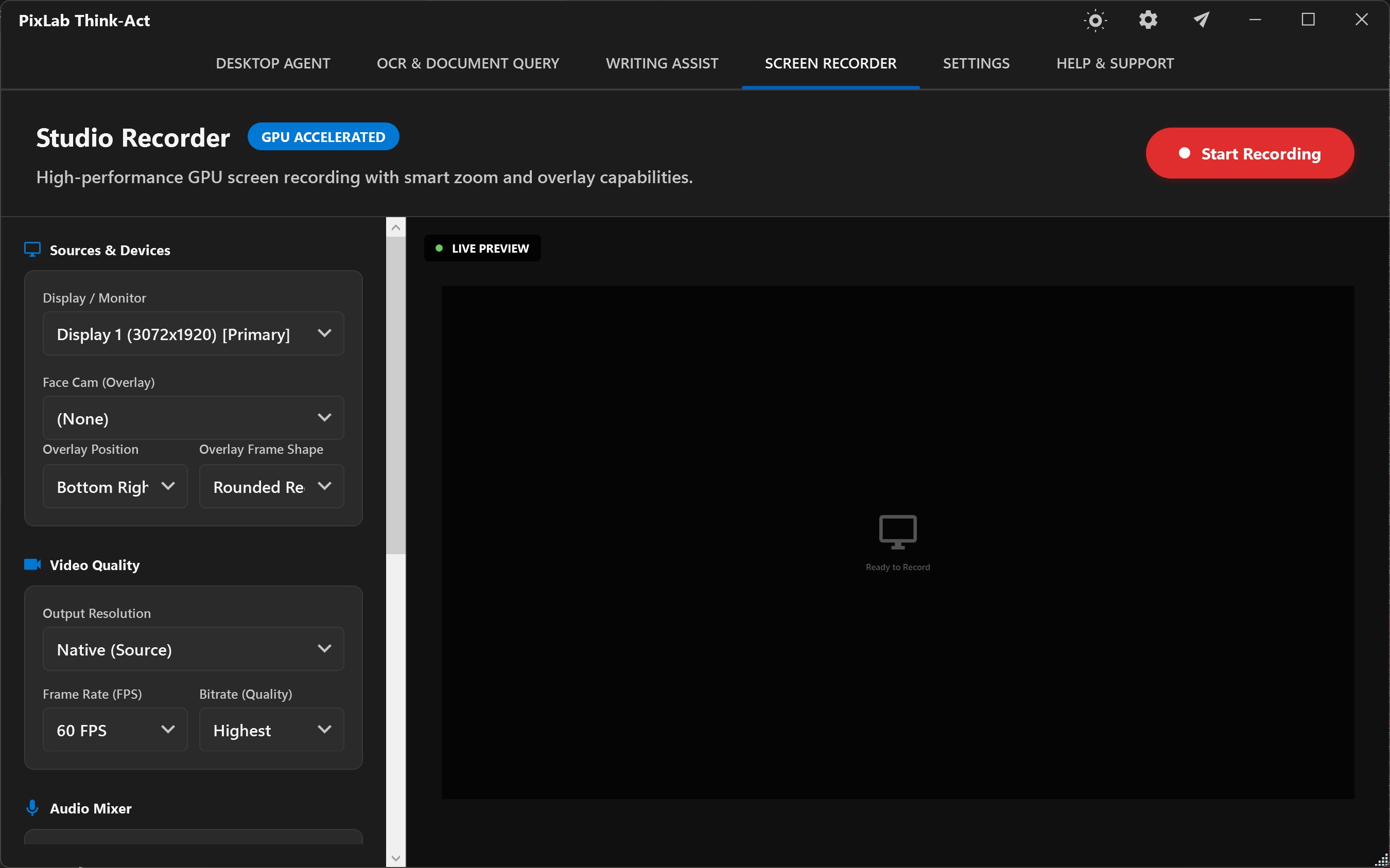
Keep recordings focused. Close unrelated applications and avoid capturing credentials, personal messages, customer information, or private screens that do not belong in the task.
Step 4
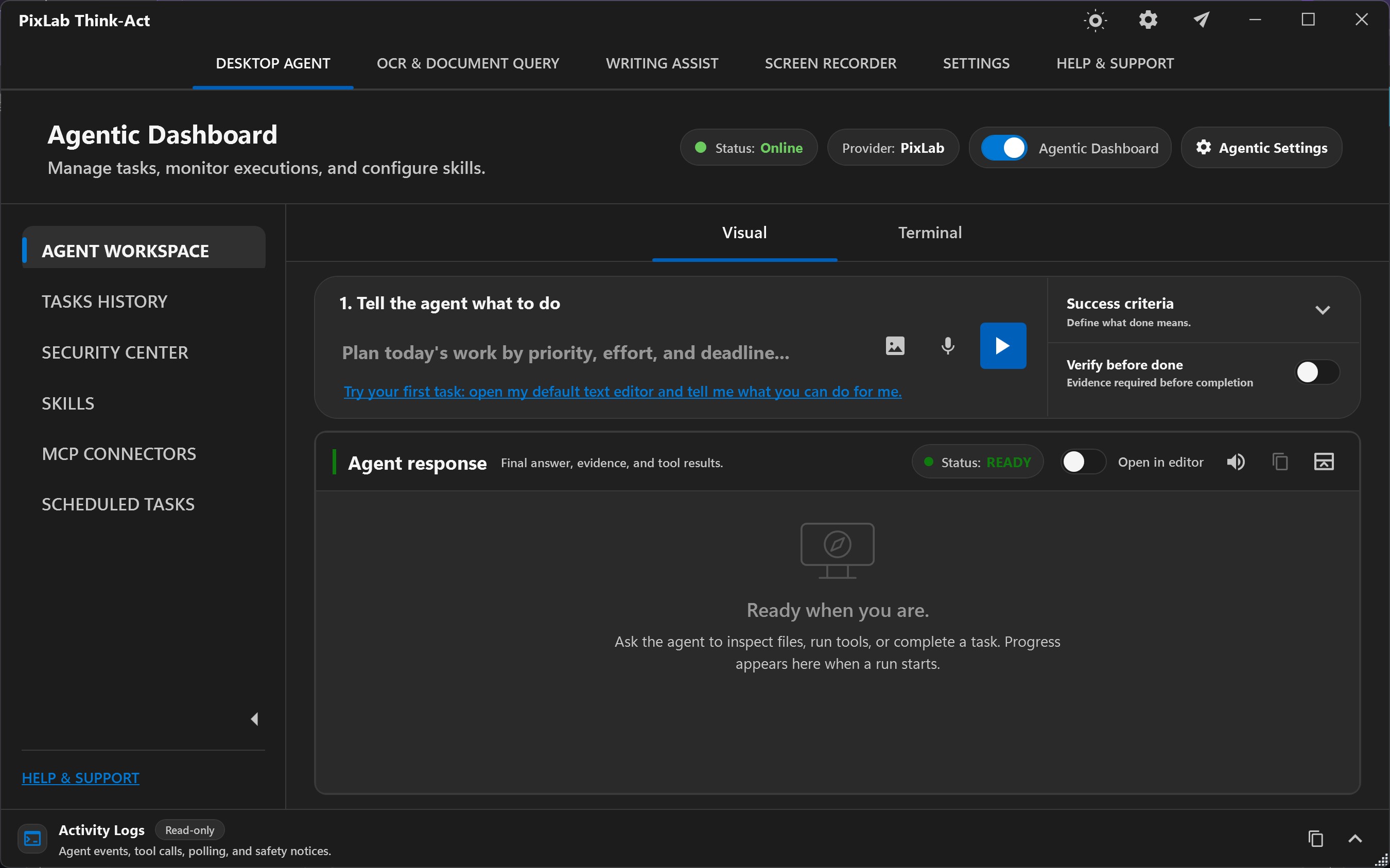
Use the Desktop Agent for Multi-Step Work
Move to the Desktop Agent when the result depends on several connected steps, supplied context, or supported tools. A strong task describes the outcome, relevant inputs, constraints, and finish condition.
Too broad“Review this and handle everything.”
Bounded request“Review the supplied support notes, group the issues by theme, draft a concise customer update, and finish with a checklist of claims that still need verification. Do not send or publish anything.”
- 1. Outcome: What deliverable should exist when the run finishes?
- 2. Context: Which documents, screenshots, notes, recordings, or files belong to the task?
- 3. Constraints: What must not be changed, shared, sent, or inferred?
- 4. Capabilities: Which built-in tools, Skills, or configured connectors are needed?
- 5. Success criteria: What should be checked before accepting the result?
- 6. Approval points: Which supported actions should pause for confirmation?
Keep the first agent run read-only or draft-oriented when possible. Review a report, proposed file plan, or prepared message before granting permission to modify or send anything.
Step 5
Turn a Proven Method into a Skill
A Skill preserves a useful way of working. It can capture instructions, conventions, prerequisites, review points, and expected output structure for a task you understand well enough to repeat.
The Think-Act integration guide explains the distinction between reusable Skills and connected capabilities in more detail.
Step 6
Add an MCP Connector Only When Needed
Model Context Protocol, or MCP, is one integration path for making supported external capabilities available to Think-Act. A local MCP server might expose a filesystem, developer tool, database, browser workflow, or another application-specific capability.
Task and context -> Skill when useful -> Connector when needed -> Permission -> Reviewed result- 1Identify the exact capability missing from the workflow.
- 2Confirm that a connector is the appropriate way to provide it.
- 3Review the package source, maintainer, runtime, commands, requested credentials, and access.
- 4Install only the package needed for the defined workflow.
- 5Test it on low-consequence data and actions.
- 6Disable or remove it when it is no longer required.
Having a connector configured does not mean every task should use it. Match access to the task and its consequences, and review the current Think-Act integrations and MCP guidance before extending a workflow.
Step 7
Configure Approval and Review Boundaries
A desktop agent can work with meaningful data and, when supported tools are configured, may be able to perform consequential actions. The Think-Act security and privacy guide focuses on deliberate capability, permission, and review.
Continue without another approval when the action is understood and acceptable.
Pause for confirmation before a consequential step.
Prevent an action that does not belong in the workflow or carries unacceptable risk.
Keep write, send, publish, delete, purchase, or other high-impact actions controlled while validating a workflow. Activity and approval records help explain a run, but they should be treated as review evidence rather than a complete forensic audit trail.
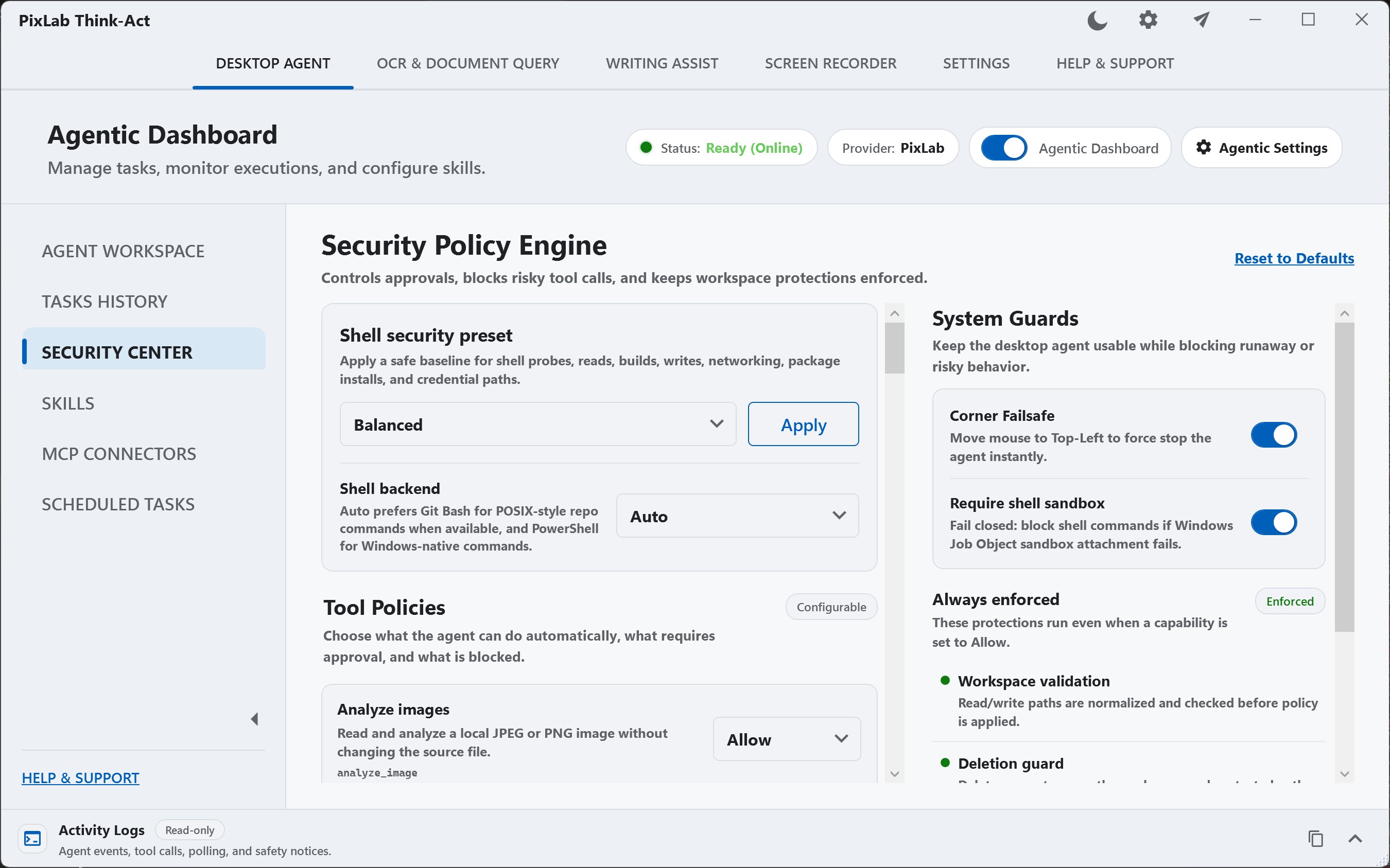
Recovery controls can help where supported, but they are not universal undo. A sent email or an external action completed by another system may not be reversible.
Practical Think-Act Use Cases
Think-Act is most useful when it reduces repeated work around existing tools rather than pretending to replace every application.
Office and Business Communication
Rewrite emails and reports, turn meeting notes into actions, summarize supplied reports, extract information from image-based documents, and prepare drafts without sending them automatically.
Developers and Technical Teams
Summarize logs and screenshots, draft issues and release notes, record reproducible bugs, preserve verified setup steps as Skills, and use trusted connectors when project-system access is required.
Operations, Support, and HR
Record processes, prepare SOP drafts, turn training notes into checklists, summarize internal policies, and extract approved fields from forms and documents.
Finance, Legal, and Document Work
Extract dates, totals, parties, clauses, or requirements and prepare structured material for qualified review. Generated output should not replace professional judgment.
Marketing and Content Workflows
Rewrite approved campaign copy, summarize supplied research, translate selected content, document publishing processes, and save brand or review requirements as reusable Skills.
For more ideas, see the Think-Act productivity examples and complete feature overview.
A Safe First-Week Adoption Plan
Avoid broad automation before you understand the product and workflow. A staged approach is easier to evaluate.
Focused tools
Try one writing task, one document extraction, or one short process recording and compare the result with the source.
One bounded agent task
Choose a task with two or three steps and a clear finish condition. Keep it draft-only without external write actions.
Improve the instruction
Refine context, constraints, output format, and success criteria before adding another capability.
Save reusable guidance
Capture a useful method as a Skill, including the review steps that caught mistakes during early runs.
Evaluate one integration
Only when external access is needed, assess one connector, review its source and permissions, and test low-consequence work first.
Common Mistakes to Avoid
Starting with a task that is too broad
Break the work into a bounded outcome with a source and finish condition. A narrow task is easier to review and improve.
Installing connectors before defining a need
Start with built-in writing, OCR, document, and recording capabilities. Add a connector only when you can name the missing external capability.
Treating a Skill like a permission grant
A Skill stores guidance. It cannot create credentials, access an account, or substitute for an unavailable connector.
Assuming every desktop workflow stays local
Review the model endpoint, connector behavior, account, storage, and network path. Desktop installation alone does not define the complete processing boundary.
Accepting output without review
Compare important claims, values, names, clauses, and actions with the original source. Increase review depth as consequences increase.
Treating recovery as universal undo
Checkpoints can help where supported, but external side effects may not be reversible. Control consequential actions before they occur.
FAQ
Think-Act Workflow Questions
What is Think-Act used for?
Think-Act is a desktop workspace for writing assistance, OCR and document intelligence, screen recording, reusable Skills, connected tools, and controlled multi-step agent tasks. Users can choose a focused tool for a single task or use the Desktop Agent when a workflow requires several supported steps.
Do I need MCP connectors to use Think-Act?
No. Writing assistance, OCR and document intelligence, screen recording, and work based on supplied context can be useful without a connector. Add a connector only when the workflow needs another supported external capability.
What is the difference between a Think-Act Skill and a connector?
A Skill preserves reusable instructions, conventions, checks, and output structure. A connector or tool provides a supported capability or external access. A Skill does not create credentials, permissions, account access, or connector availability.
Does running Think-Act on the desktop mean all processing stays local?
No. The complete data path depends on the configured model or endpoint, connectors, accounts, storage, and other services used by the workflow. A local MCP connector can also use the network according to its own code and permissions.
Which operating systems currently support Think-Act?
The current direct installer supports 64-bit Windows 10 and Windows 11. The macOS release is planned for Q1 2027. Check the Think-Act downloads page for the latest platform availability and requirements.
What is a good first workflow for Think-Act?
Start with a low-consequence task whose result is easy to compare with the source, such as rewriting one email, extracting information from one document, summarizing one supplied report, or recording one familiar process. Expand the workflow only after reviewing the result.
Try one practical workflow
Download Think-Act for Windows
Start with a task you understand well enough to judge. Use a focused tool first, move to the Desktop Agent when the work needs several steps, and add connected tools only when a defined capability is missing.