How-to & FAQ
A guided introduction and practical answers, shown first to new visitors.
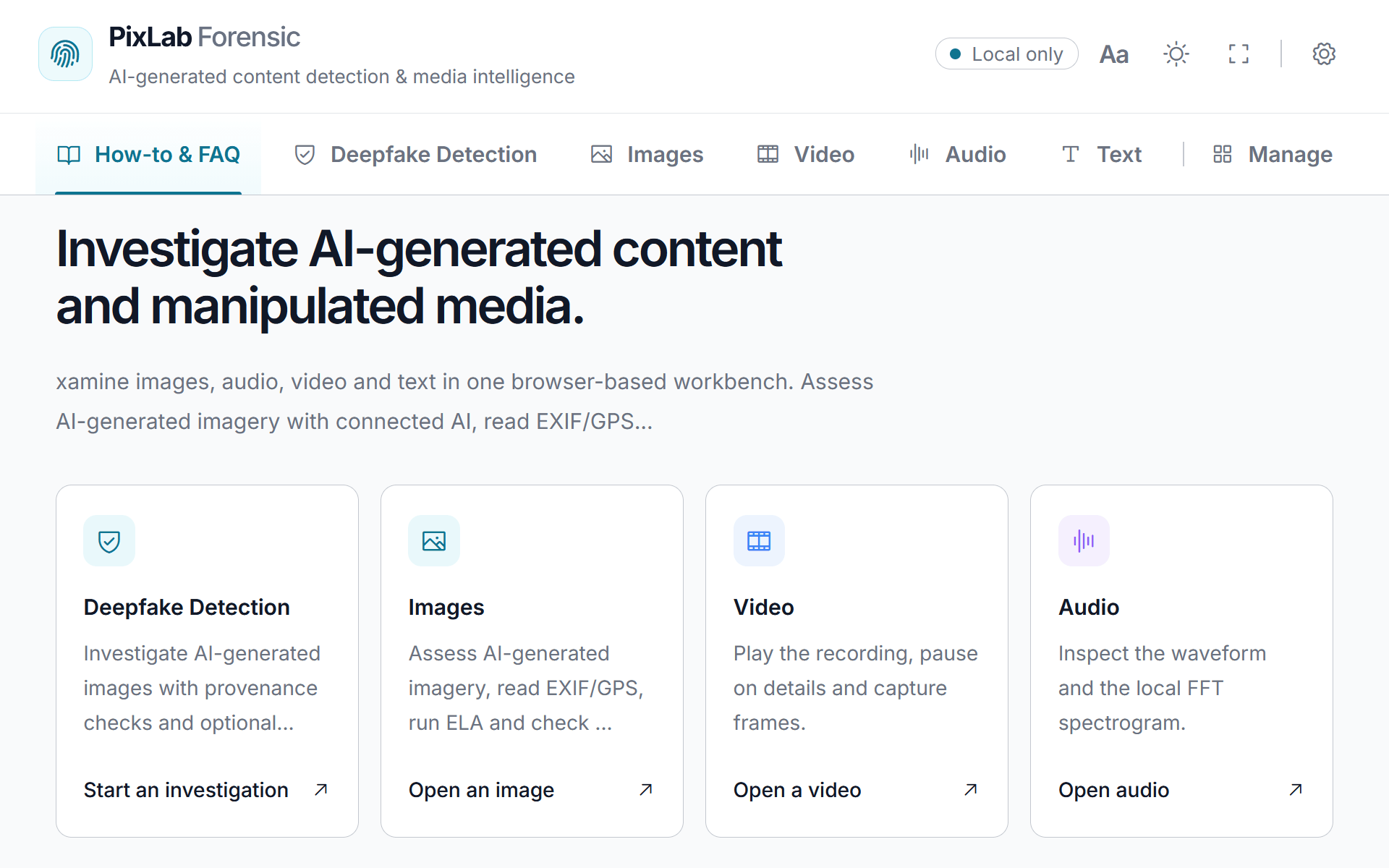
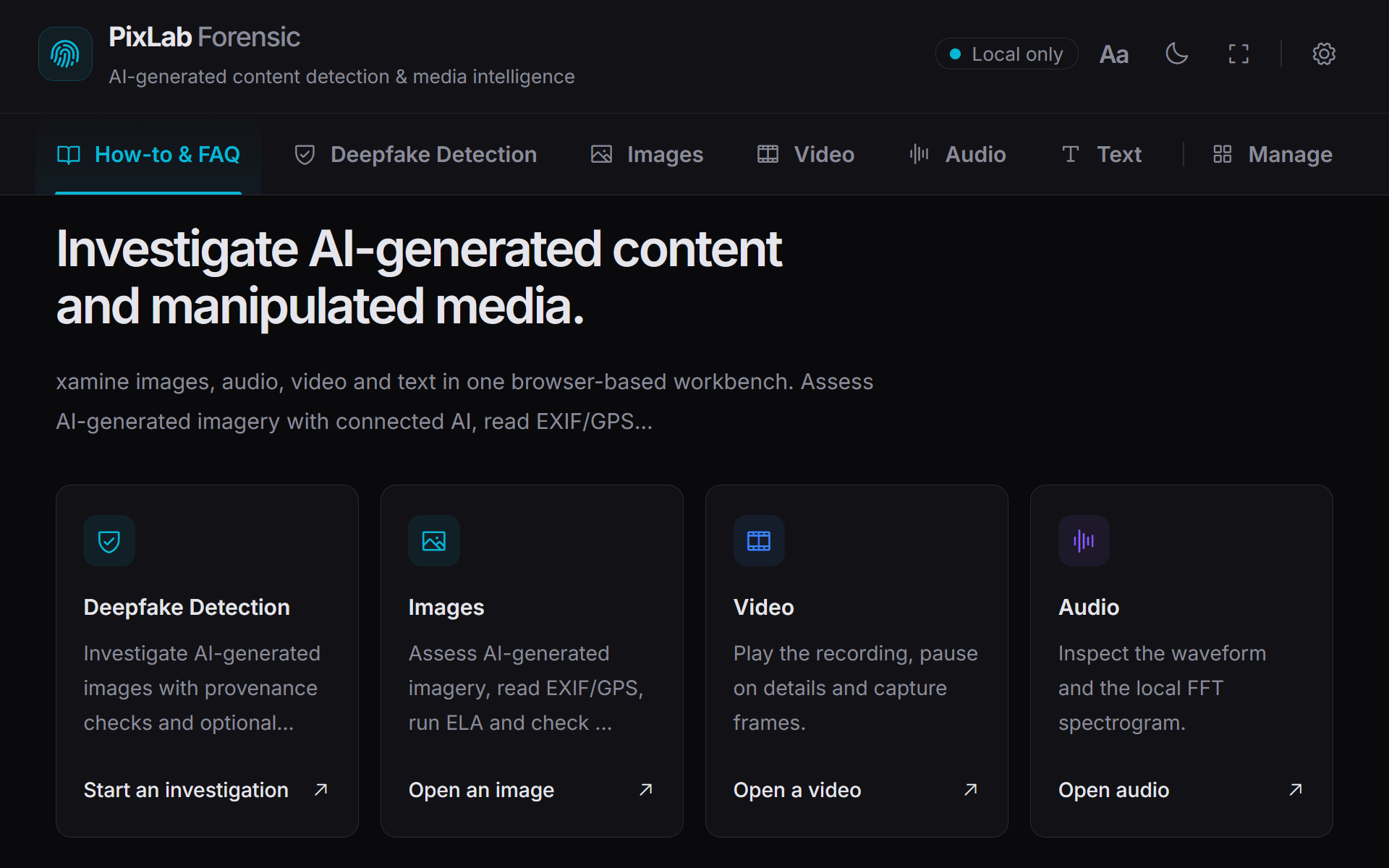
PixLab Forensic helps you investigate AI-generated and manipulated media across images, video, audio and text. Inspect EXIF and GPS metadata, review waveforms and spectrograms, examine video playback, search source text and explicitly request connected still-image assessment from one browser-based workbench.
Local inspection does not upload the source. Connected image AI and online maps are blocked by default and run only when enabled and explicitly requested. See processing and storage details →
Inspect visual evidence
Zoom, metadata, ELA, hashes and recorded GPS.
Review recordings closely
Waveforms, spectrograms and dedicated video playback.
Trace text references
Search terms, URLs, emails, dates and source passages.
Request connected assessment
Still-image assessment and image questions, only when explicitly requested.
The horizontal tab bar separates Images, Video, Audio and Text into focused workspaces, with How-to & FAQ and Manage alongside them. Move between open sources without rebuilding the investigation each time.
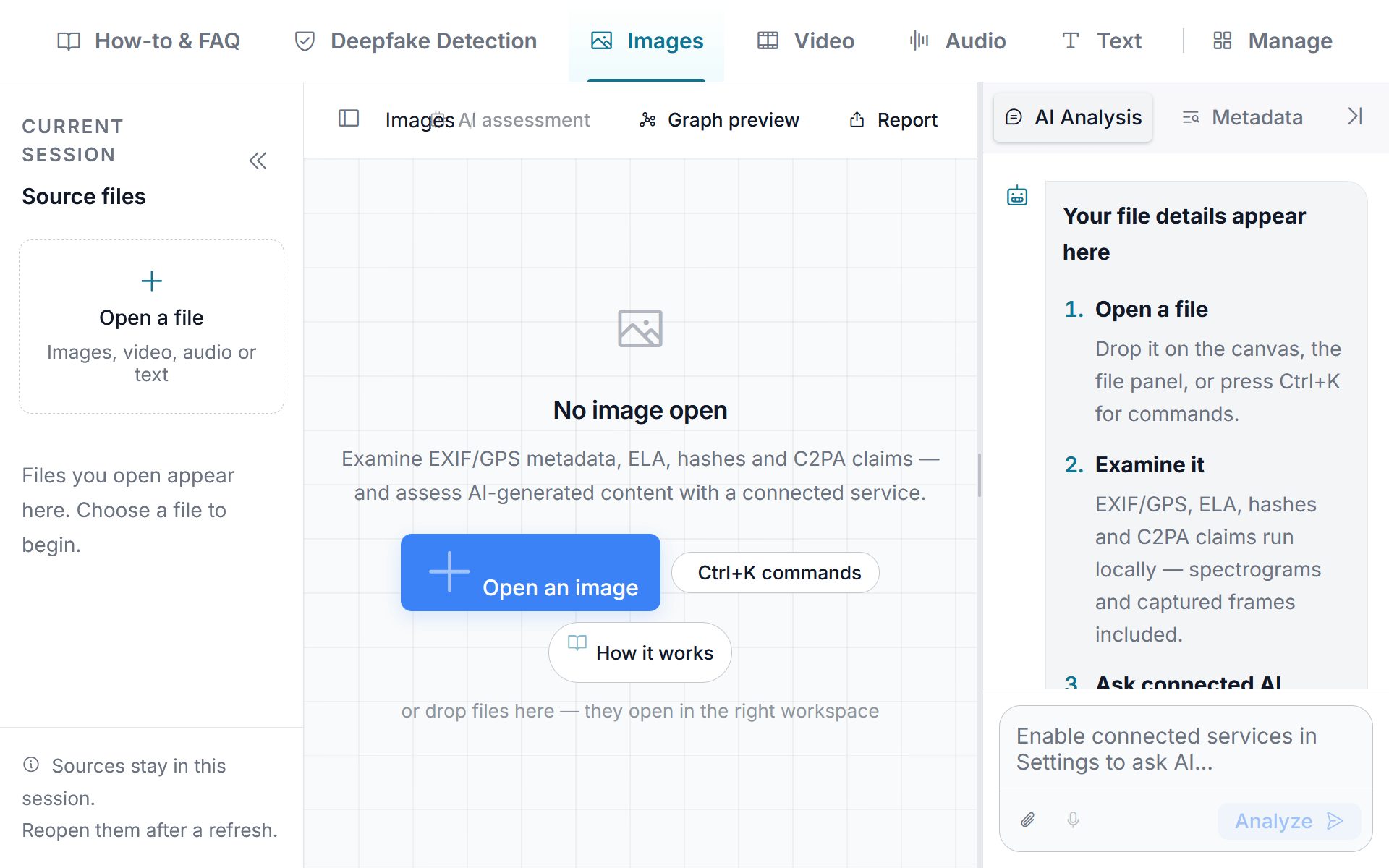
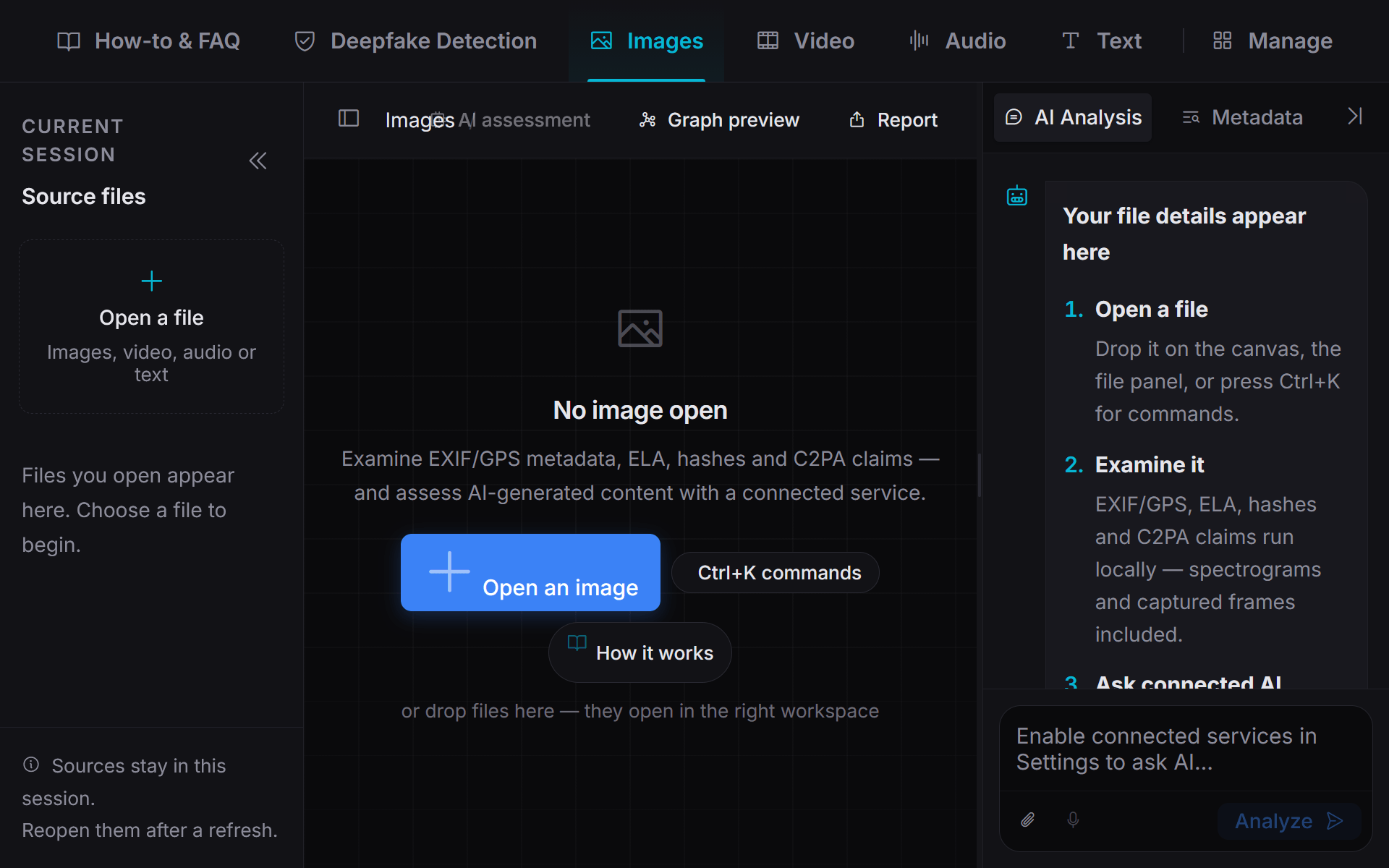
Every file you open joins the session list. Each media workspace keeps one current source, and supported per-source editing, cursor and search state stays available while you switch.
The last primary tab is remembered when browser storage is available. Refreshing clears session sources unless you explicitly saved them into a local project.
One workbench, focused views
A guided introduction and practical answers, shown first to new visitors.
Inspect visible detail, EXIF/GPS metadata, local authenticity indicators and optional connected image assessment.
Replay footage in a dedicated video player or listen to recordings alongside a waveform and local FFT spectrogram.
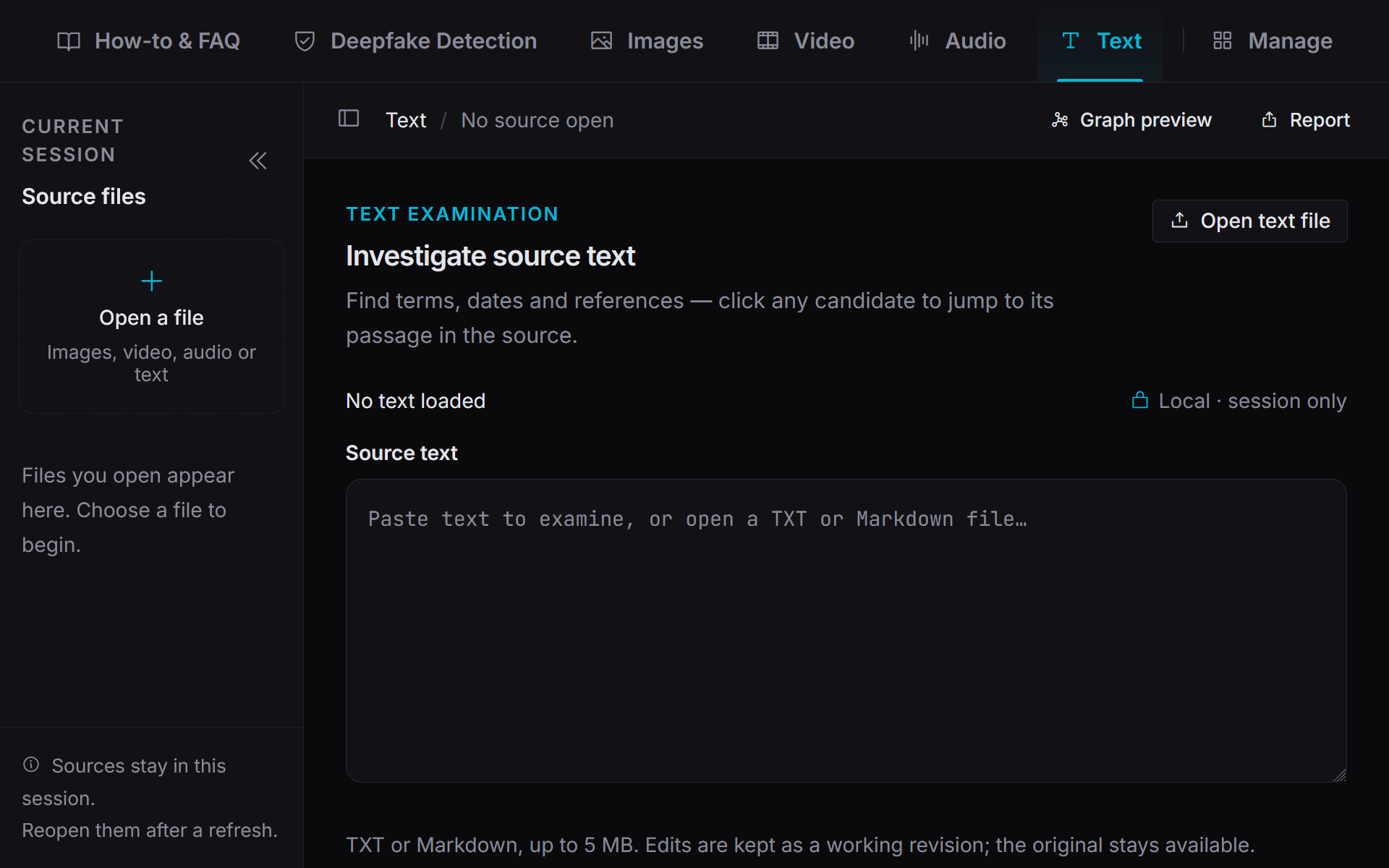
Paste or import source text, search terms, inspect counts and surface candidate URLs, emails and date/time references.
Open Projects, Users & Profile, Settings, hash sets and App Data controls from one place.
Start with a question the source can help you investigate. Separate what was recorded, what you can directly observe and what still needs independent verification.
Submitted photograph
Inspect the image and available camera, date, software and GPS fields.
Identify details to corroborate and information that is missing.
Explore image diagnosticsRecording
Replay footage, or navigate the audio waveform or spectrogram and listen again.
Locate a moment or passage for closer review against the account.
Statement or notes
Paste text or import TXT/Markdown, search a phrase and inspect URL, email and date candidates.
Identify references to verify independently while keeping their passages in view.
Explore text analysisSynthetic-media review
Review the image and metadata, then explicitly request connected AI assessment if enabled.
Compare the service response with the source and decide what still needs corroboration.
Explore synthetic-media assessmentOpen the media you already have, inspect what the file itself reveals, and use connected services only when they add useful context. Keep direct observations separate from interpretations, then preserve useful findings through notes, projects and reports.
Choose a workspace
Open Images, Video, Audio or Text so the workbench presents the tools relevant to that material.
Open the source
Choose a file, drop multiple supported files into the source panel or paste text directly into the Text workspace.
Examine locally
Review metadata, image details and ELA, replay recordings, inspect spectrograms or search and extract references from text.
Add connected context
Explicitly request supported image assessment, image questions or location reasoning when additional context is useful.
Connected interpretations supplement the examination. They do not replace direct observations or independent verification.
Record the findings
Keep recorded facts, analyst observations and connected interpretations distinct, then preserve useful findings in notes or an exported report.
Source
Visual details
Inspect
Recorded context
Review
Indicators & gaps
Review available EXIF metadata alongside a zoomable image to examine how recorded dates, device details and software tags relate to the claim you are checking. When coordinates are present, continue into location intelligence without treating metadata as unquestioned fact.
Review camera, date, software and GPS fields when available.
Pan and zoom into regions that require closer examination.
Use recompression differences as an investigative indicator, not proof.
Generate SHA-256, MD5 and perceptual dHash values locally.
Import MD5 or SHA-256 lists and compare opened images locally.
Record observations, questions and missing context alongside the source.
Read recorded GPS coordinates locally, or explicitly ask connected image intelligence where a photograph may have been captured when no location is recorded. Keep recorded coordinates and inferred location suggestions clearly separated, and verify either against independent sources.
Read latitude and longitude from supported metadata without converting an inference into a source fact.
With connected services enabled, choose Map, Split or Show on map to load the OpenFreeMap basemap through MapLibre, with 2D and globe presentation available. No map credential is required.
Ask about landmarks, signs or scene details through a configured image-analysis service, then verify the suggestion independently.
Recorded location
GPS metadata
Extracted from the image file when present
Inferred location
Connected AI estimate
Suggested from landmarks or visual details
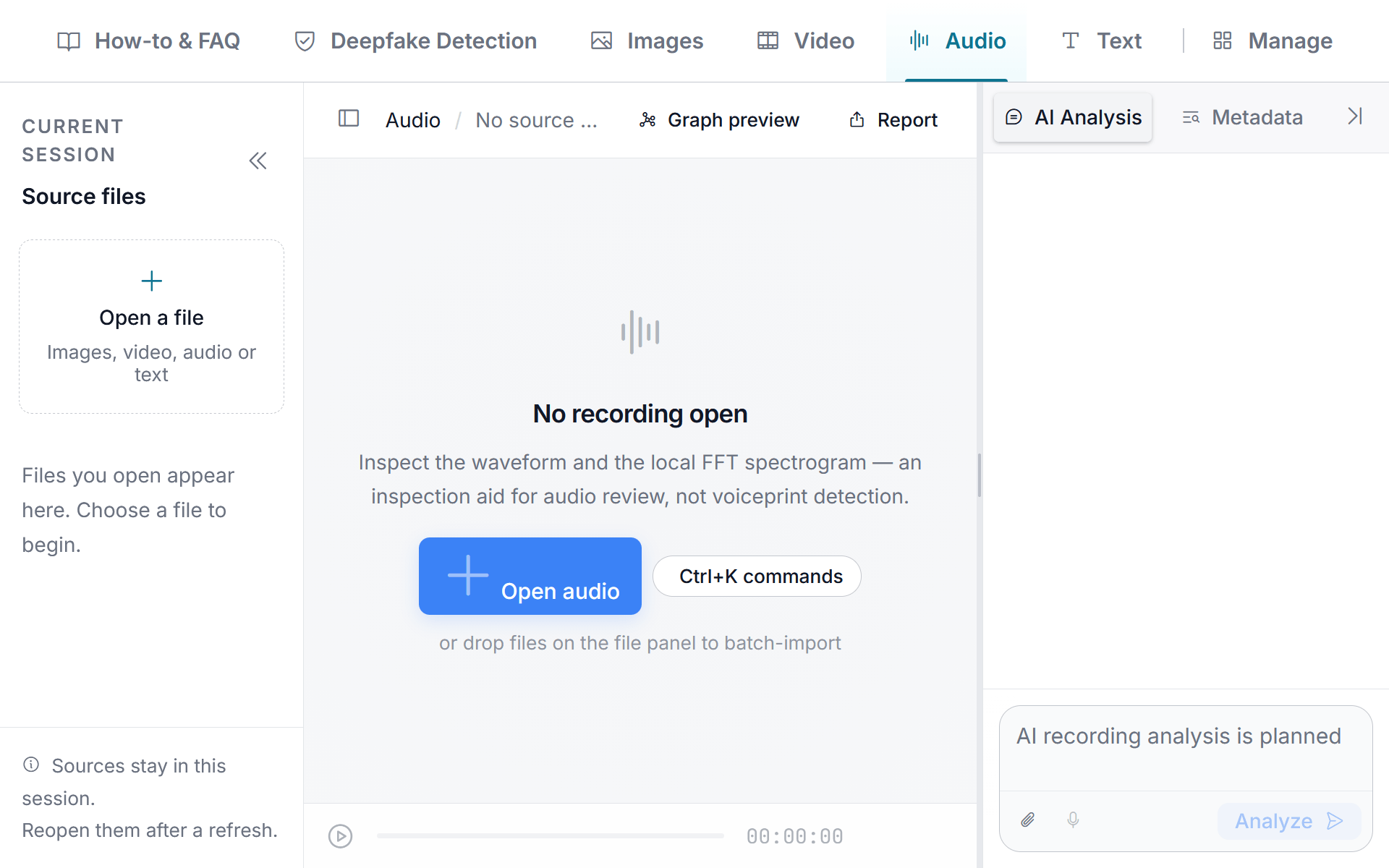
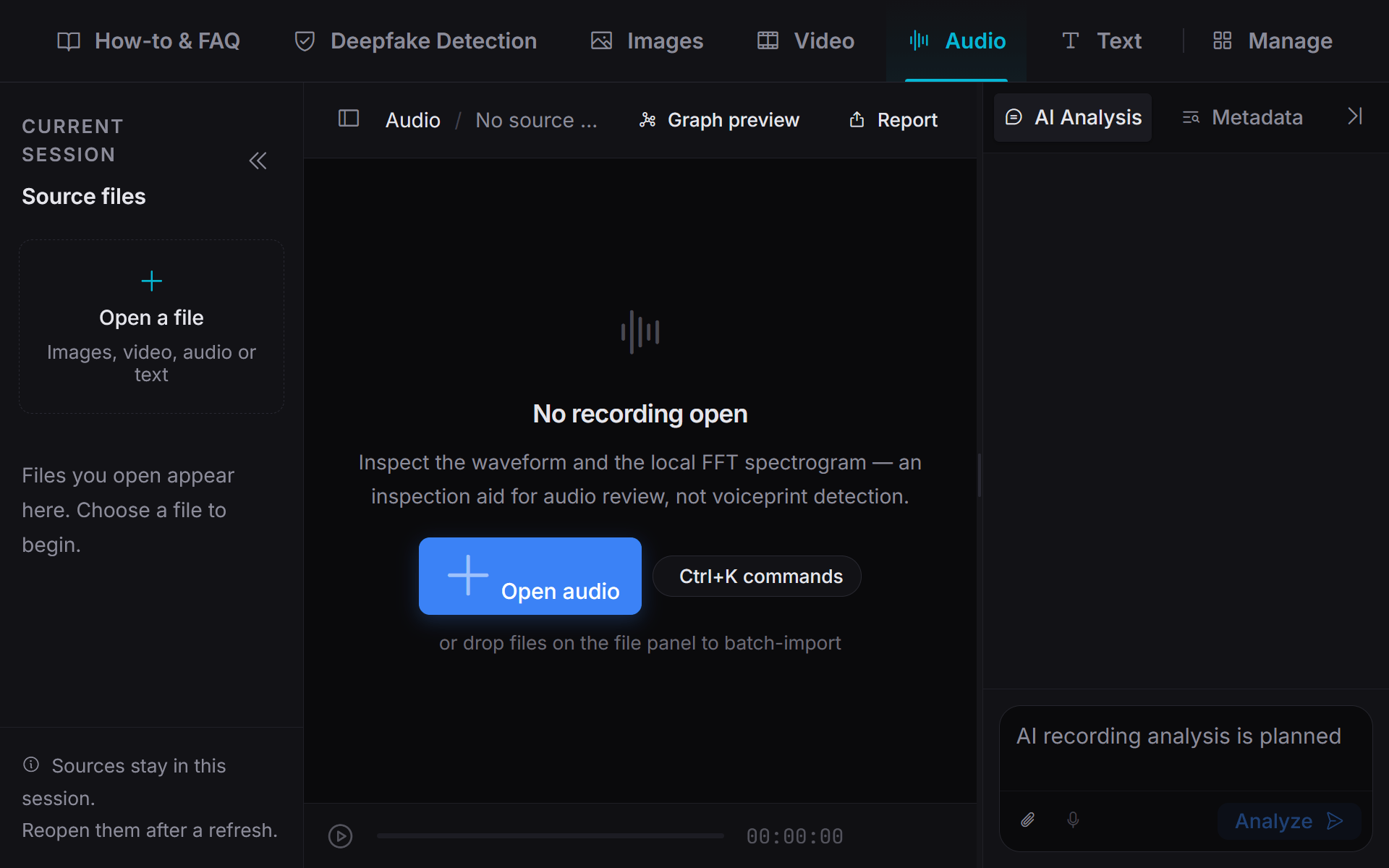
Audio and video use separate local workspaces for reviewing recordings. Navigate the source, return to the relevant passage, and keep the recording available while you compare it with other material. See processing and storage for the local-review boundary.
Open a browser-supported recording, listen while following its playback position and move through a waveform to revisit relevant passages.
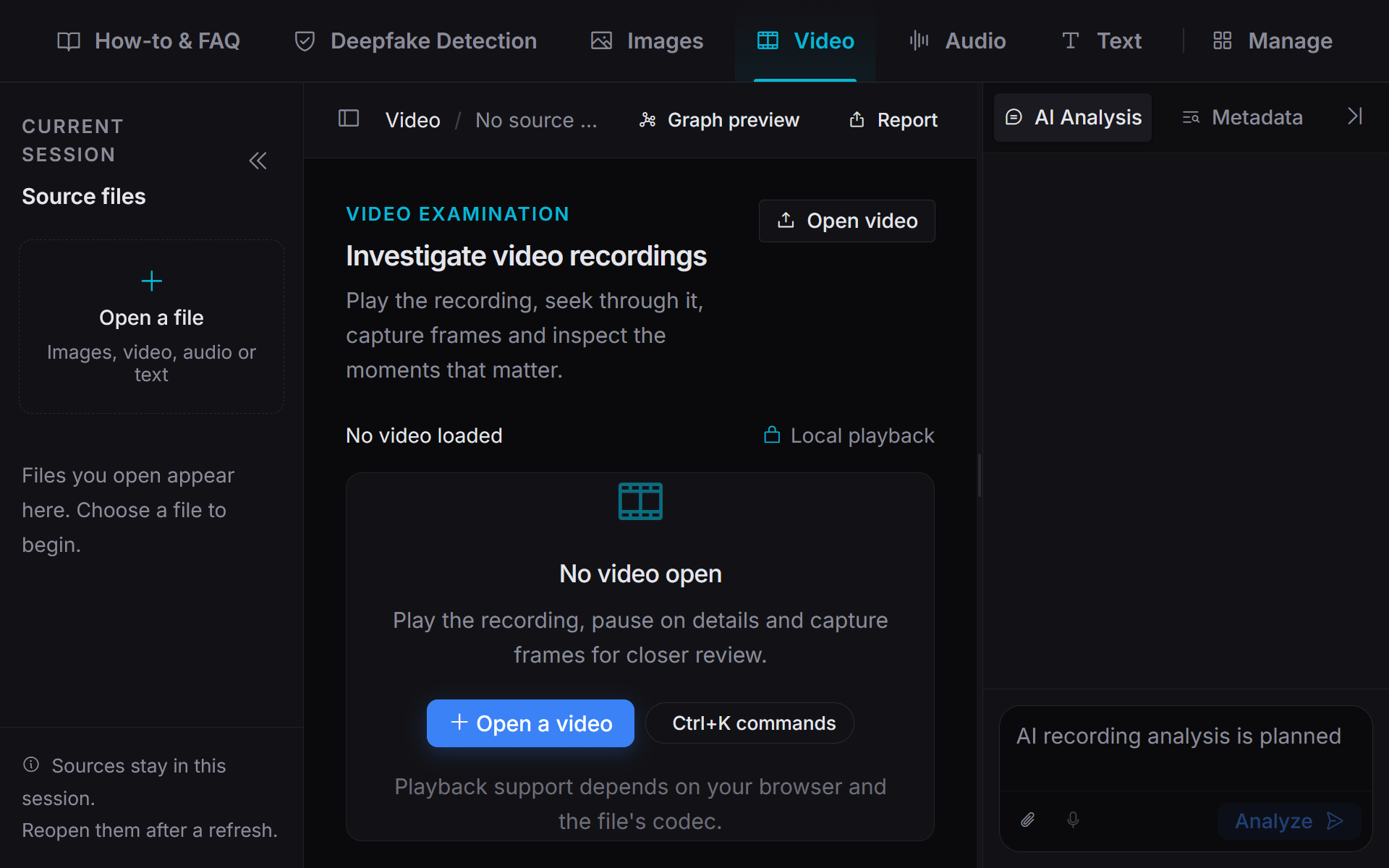
Use a dedicated player to pause, seek and revisit visible details while keeping the recording open during the session.
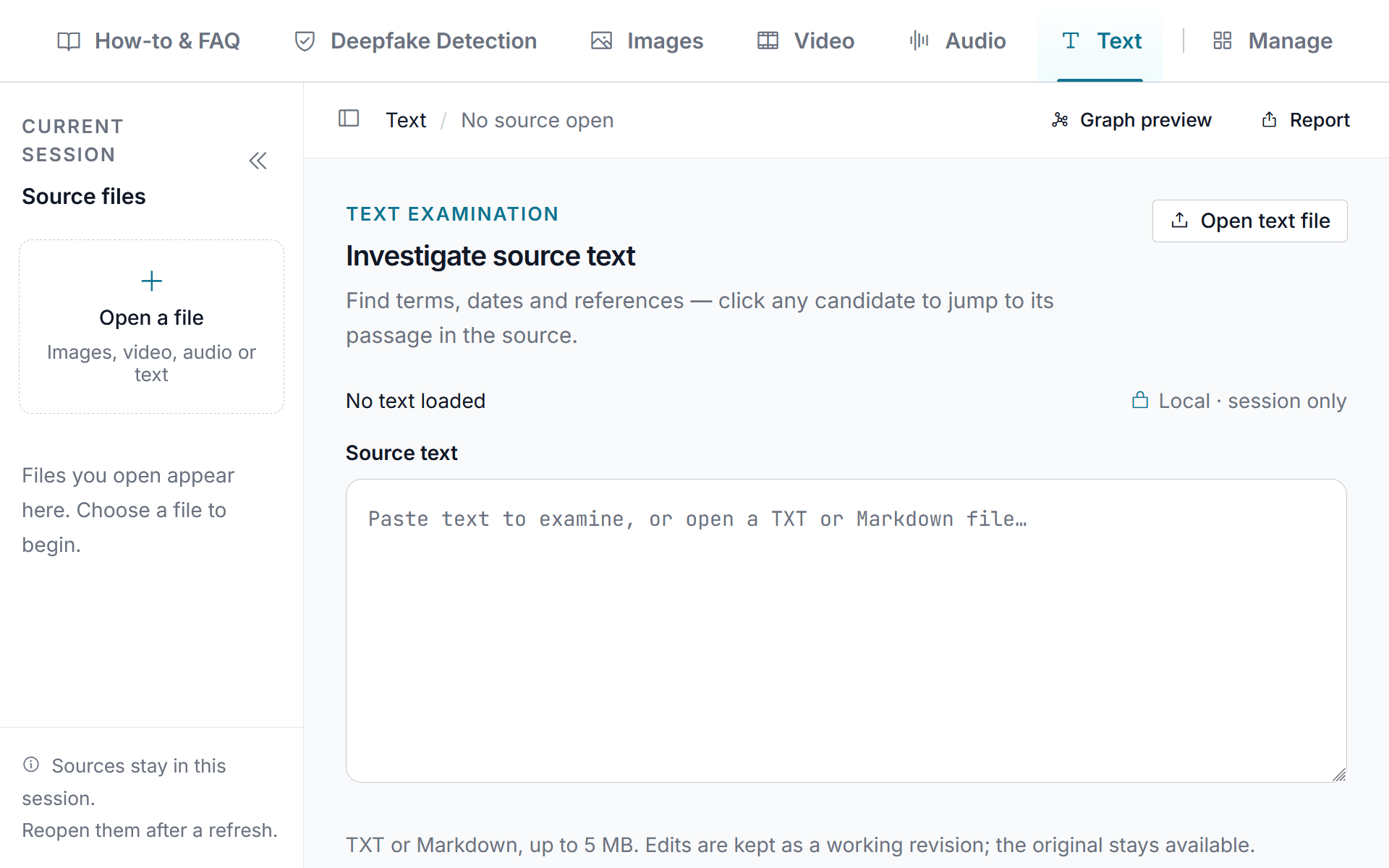
Paste source text or import a TXT or Markdown file to search statements, inspect their size and surface candidate links, email addresses and date/time references. Current text inspection stays browser-local and does not send the source text to AI.
Move through term matches and click extracted candidates to select their exact passage in the source.
URLs, emails and date/time patterns are candidates for independent review, not verified facts.
View or restore the original at any time. Cursor, scroll and search state are preserved while you switch sources.
Connected assessment currently applies to still images. For suspected synthetic material in other formats, use the audio and video review tools or text inspection while broader automated detection remains planned.
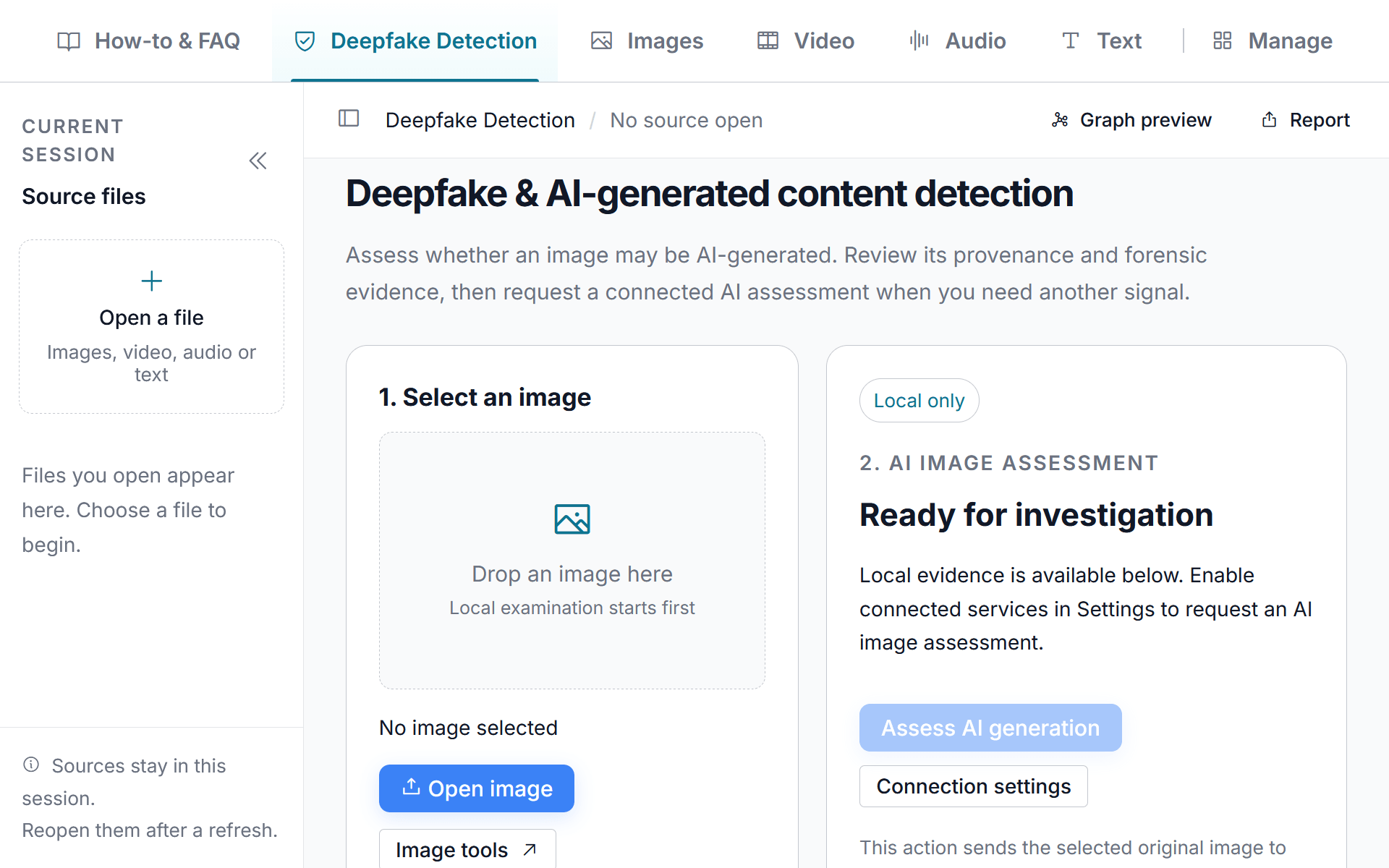
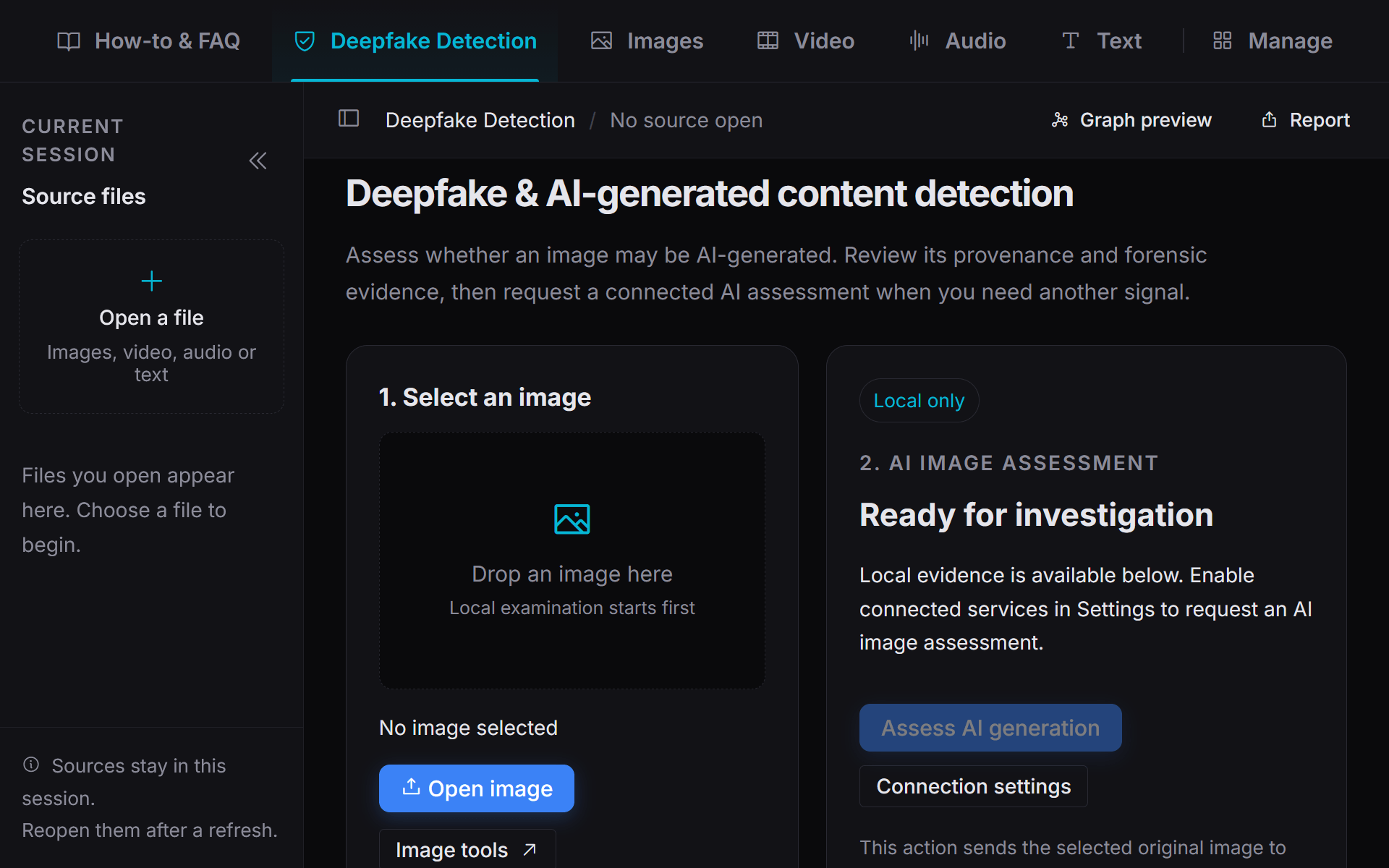
Explicit assessment
Opening a source does not start AI analysis. The active image is submitted only when you explicitly request an assessment and a working analysis service is configured.
Corroborate locally
Review the explanation and service attribution alongside ELA, SHA-256/MD5/dHash fingerprints, metadata and available C2PA Content Credentials claims.
Important boundary
A displayed confidence value is reported by the model. It is not a validated forensic probability, authenticity score or certification.
AI-assisted image questions
Explore a scene, visible detail or possible location. When you submit a request, the configured service can use the active image preview and available metadata as context.
Example questions
“Which visible details should I examine more closely?”
“What do the recorded camera and software fields tell us?”
“Which location clues are visible, and which conclusions are estimates?”
“What additional information would help assess this claim?”
Opening an image does not start AI analysis automatically. Review each response against the source and independent information.
Core inspection happens in your browser. Connected AI and online maps remain separate and are used only when enabled and explicitly requested.
Browser-local
Image inspection, EXIF and GPS extraction, ELA, hashing, supported audio and video review, and text examination run locally.
Explicit AI request
An image preview and request context are sent to the configured AI service only after you enable connected services and submit the request.
Explicit map opening
Recorded coordinates are extracted locally. Opening the map connects to the OpenFreeMap basemap through MapLibre when services are enabled.
| Workflow | What it provides | Processing & retention |
|---|---|---|
| Image & EXIF inspection | Image details and supported metadata fields | Local. Source and results remain session-only unless explicitly saved. |
| Image authenticity indicators | ELA overlay plus SHA-256, MD5 and dHash fingerprints | Local. ELA is an investigative indicator, not proof. |
| Known-file checks | Match or no-match against imported hash lists | Local. Compared in the browser, not against an online database. |
| GPS extraction | Coordinates recorded in the source file | Local extraction. Online mapping is a separate action. |
| Audio review | Playback, waveform navigation and FFT spectrogram | Local. Browser processing for supported recordings. |
| Video review | Playback, seek controls, dimensions and duration | Local. Browser playback depends on supported codecs. |
| Text examination | Counts, search, URLs, emails, dates and linked passages | Local. Pasted or opened text clears on refresh unless retained in a saved project. |
| Session sources | Multiple sources with batch intake and per-source state | Session-only. Switching sources preserves supported state during the session. |
| Local projects | Saved investigations with source files, hashes and notes | Explicitly retained. Stored in this browser; project manifests do not contain media files. |
| Connected image AI | Answers, summaries and synthetic-media assessment | Explicit request. Sends an image preview and request context to the configured service. |
| Interactive maps | Geographic context for recorded coordinates | Explicit opening. Connects to OpenFreeMap through MapLibre when services are enabled. |
| Local preferences | Tab, theme, text size, layout, display name and service settings | Stored in the browser when available. Preference export excludes service configuration. |
Open multiple sources, batch-import files, and move between them during the session. Refreshing clears unsaved session sources, pasted text, and findings, while projects you explicitly save remain available in this browser.
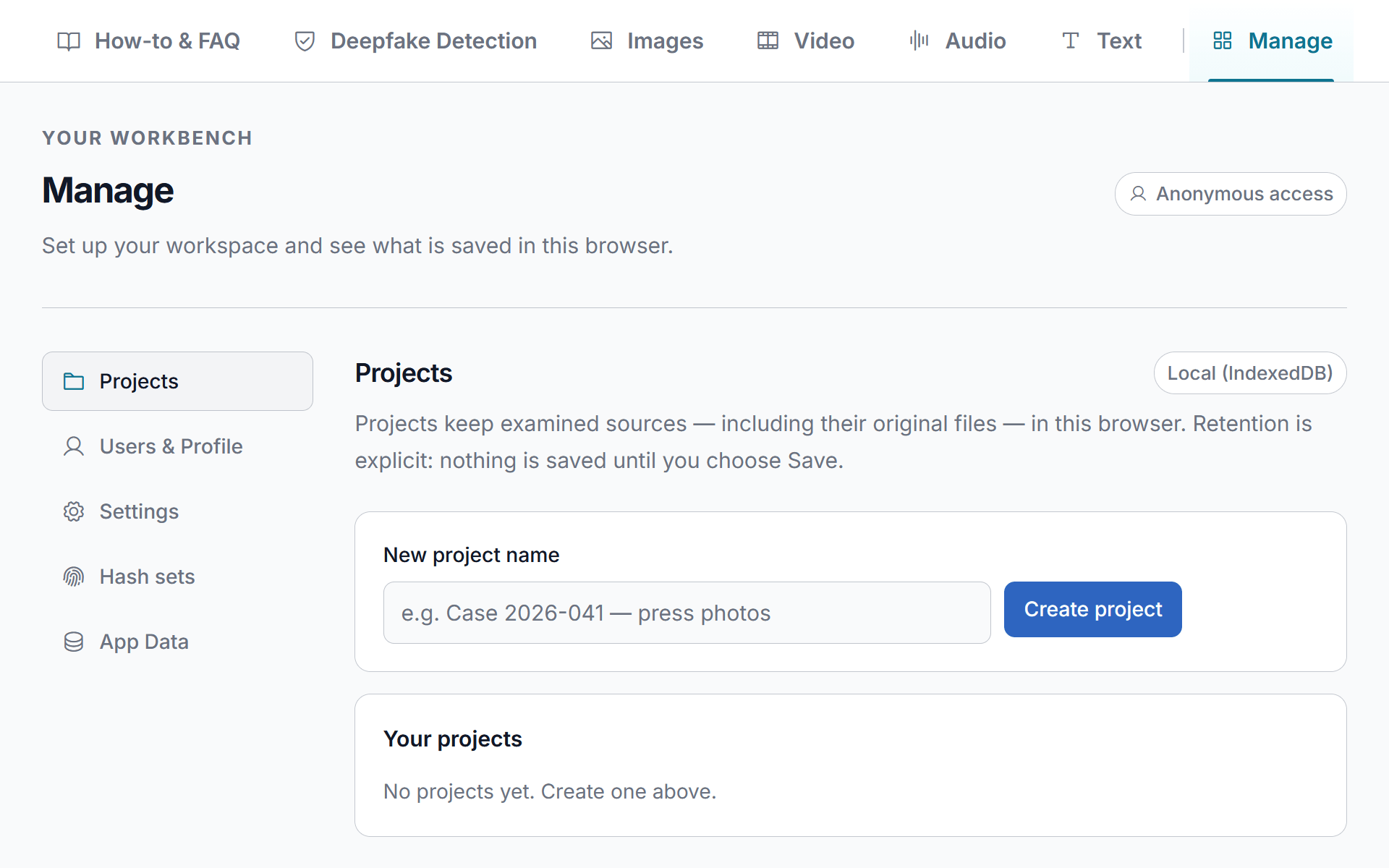
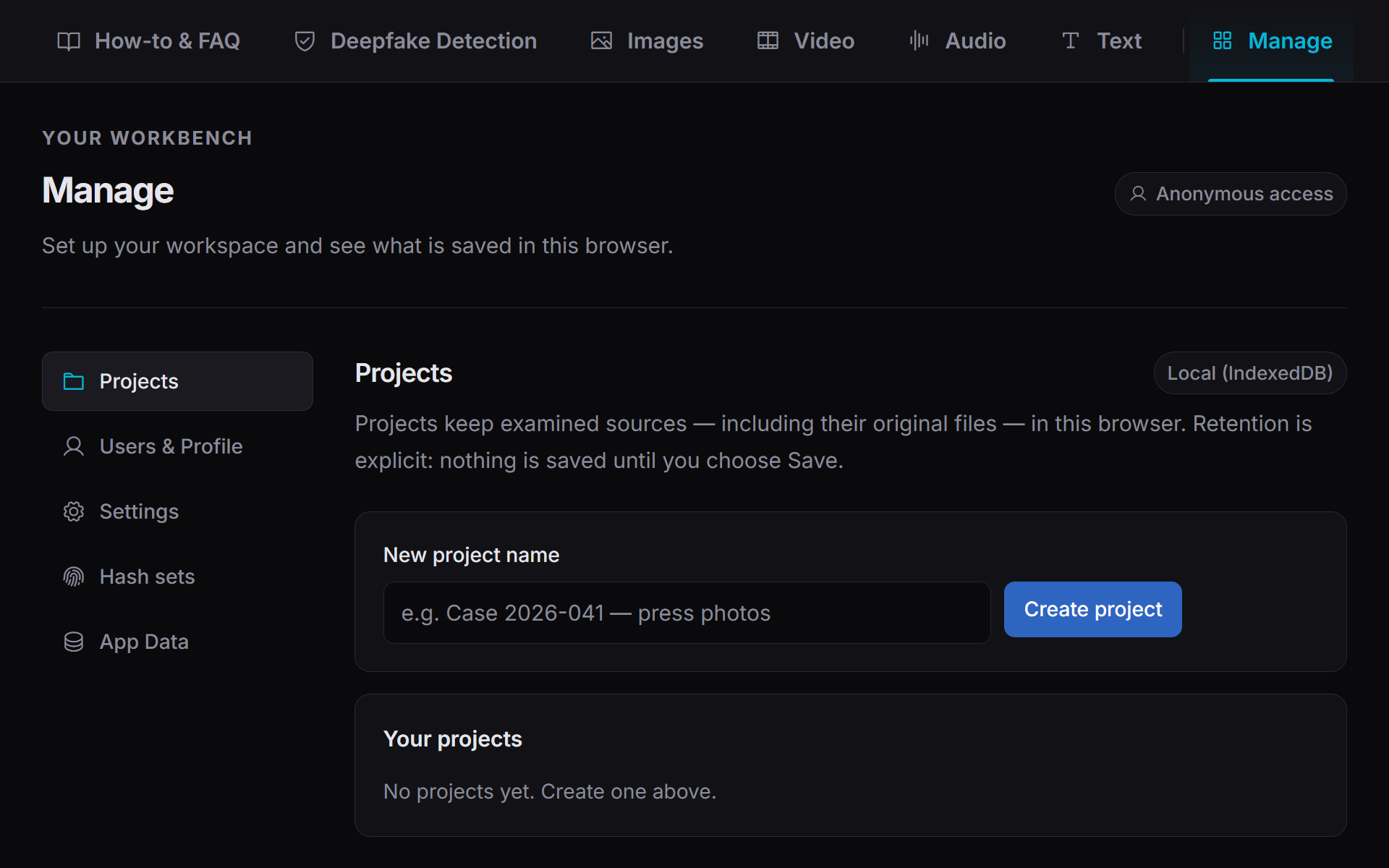
Manage brings local profile, project, hash-set, display and app-data controls together. The shared header keeps text size, theme, fullscreen and general settings within reach.
Save source files, hashes, and notes locally when you save a project. Export/import manifests without media files or credentials.
Save an optional display name, remember the last workspace, resize text from 100%–150%, switch themes, use fullscreen, and collapse panels.
Import local MD5/SHA-256 hash sets, manage connected analysis and maps, export interface preferences, or reset them. Exports exclude source media, findings, and service configuration.
Hashes, recorded metadata, analysis parameters, operator notes, provenance notes and an explicit disclaimer.
Produce a structured report and save it as PDF through the browser print dialog. Source files are not embedded.
Reports record the examination; they are not certificates of authenticity. Preference exports exclude source media, findings and service configuration.
Use the workspace that matches the evidence in front of you, develop observations and then compare those observations with other sources.
Examine submitted images, recordings and statements before drawing conclusions about a claim.
Use coordinates, visible clues and extracted text references as starting points for independent research.
Review supported source material, note missing information and develop concrete follow-up questions.
Use the workbench for initial examination within the organization's evidence-handling procedures.
Revisit important passages and compare what is visible or audible with the account of an event.
Combine connected still-image assessment with metadata, ELA, hashes and Content Credentials while broader detection capabilities develop.
PixLab Forensic already supports direct source examination across several media types. The roadmap extends those capabilities with deeper authenticity checks, recording intelligence and cross-source analysis.
Roadmap previews are illustrative
Demonstration graphs do not represent relationships automatically derived from files you open.
Planned capabilities have no committed release dates.
Error-Level Analysis is available for re-save inspection. JPEG compression analysis and regional noise comparison remain planned.
C2PA presence and supported claim extraction are available. Full manifest parsing and signature verification remain planned.
Connected still-image assessment is available. Broader validated detection across image, audio, video and writing remains planned.
Relationships between files through devices, dates, locations and other observations are planned.
Local project retention, notes and manifest import/export are available. Wider search and richer cross-source analysis remain planned.
Local spectrograms and structured reporting are available. Transcription, diarization and richer automated recording analysis remain planned.
Quick answers about image forensics, recordings, connected AI, local processing, saved projects and reports. Important boundaries are highlighted so you can scan them quickly.
PixLab Forensic is a browser-based media intelligence and forensic-analysis workbench for images, video, audio and text. Use local inspection tools first, then explicitly request connected image AI or maps when needed.
They help you develop observations to verify: recorded metadata, visible image details, audio patterns, video moments and text references. They can also reveal missing context, but they do not prove a claim on their own. See analysis in practice.
The guide opens first for new visitors. Choose Images, Video, Audio or Text, then open a supported file or paste text. Files from the shared source panel are routed to the appropriate workspace. See workspaces.
Yes, when browser storage is available. The last primary tab can be restored, but unsaved session sources and findings clear on refresh. Explicitly saved local projects are separate. See processing & storage.
Use Aa (Text size) in the header or Manage > Settings. Choose 100%, 115%, 130% or 150%; the preference is remembered locally when storage is available.
Open the image in Images and review the Metadata panel. Supported fields can include camera make/model, capture date, software tags and GPS. Extraction runs locally and does not trigger AI. See Image diagnostics & EXIF.
Yes. You can still pan, zoom, use local image indicators and optionally request connected assessment. Missing EXIF does not prove authenticity, and metadata tools cannot recover fields that are absent.
PixLab Forensic can read recorded dates and GPS coordinates when they exist. Recorded values can be edited, so corroborate them. The optional map and AI location estimate are separate actions. See location intelligence.
Yes, through an explicit connected image question. The service can reason from landmarks, signs and visible details, but the result is only a hypothesis and does not recover missing GPS.
Current tools include visual review, metadata, ELA and C2PA presence/claim extraction. Deeper JPEG/noise diagnostics and full C2PA manifest/signature verification are planned. See the roadmap.
You can review ELA, metadata and hashes. ELA is an indicator, not proof of editing; ordinary re-saving can create similar differences. Exact hashes identify a file, while dHash helps compare perceptual similarity. See image diagnostics.
For still images, an explicit connected assessment can return an explanation and reported signals. Compare that with ELA, hashes, metadata and available C2PA claims. Audio, video and text currently rely on local review tools; broader automated detection is planned. See AI / deepfake analysis.
Not currently. Connected AI assessment applies to still images. Audio and Video provide review tools, and Text provides local search/reference extraction. Automated audio, video and AI-writing detection are planned.
Yes, when connected AI is enabled and configured. Ask about visible content, scene context, metadata or possible location. Each request is submitted explicitly and should be checked against the source.
Use the waveform and local FFT spectrogram to locate passages, pauses, transitions and level changes. Click the spectrogram to seek and follow the playback cursor. They do not identify speakers or prove an edit. See audio analysis.
Current video review provides playback, pause/seek, duration and available dimensions. Frame extraction, separate soundtrack waveforms and automated video diagnostics are planned. See video review.
Paste text or import TXT/Markdown up to 5 MB. Current tools include:
Text stays local. PDF parsing, OCR, entity recognition and connected text analysis are planned. See text analysis.
Image display, metadata extraction, audio decoding and video playback depend on browser/library support. Text accepts TXT, Markdown and pasted text up to 5 MB. PDF and Word are not supported by the current Text workspace.
Core inspection does not upload the source. Connected image AI can send a preview and request context only when explicitly submitted; opening the online map creates a separate map connection. See processing & storage.
Only after connected services are enabled and you choose Map, Split or Show on map. Opening a GPS-tagged image alone does not connect to OpenFreeMap; local GPS extraction still works while connected services are blocked.
Unsaved session material clears on refresh. Interface preferences can persist locally, and projects you explicitly save retain their source files, hashes and notes in this browser. Review local projects and reporting → Reopening a saved project into the workbench is planned.
Yes. Open or batch-intake several sources, then switch among them without reopening. Each media workspace keeps one current source and preserves supported per-source state during the session. Cross-file comparison and similarity search are planned.
The local profile is not an account. Preference export excludes media, findings and service configuration. See projects & app data.
Yes. Report can produce:
Source files are not embedded, and the report is not an authenticity certificate.
Not yet. The graph preview currently uses demonstration data. Automatic relationships derived from your opened sources are planned. See the roadmap.
No single metadata field, visual signal or AI response proves authenticity. Treat the workbench as a way to develop observations and questions, then corroborate them with source context and independent evidence.
The browser workbench is free and requires no account or desktop installation. Optional connected AI needs a configured analysis service; online maps need no credential. Connected services may have separate costs.
Yes. It supports initial examination for journalists, fact-checkers, OSINT researchers, investigators and recording reviewers. Use it to inspect recorded context and develop follow-up checks; deeper case management remains planned.
Read the context recorded in an image. Revisit a moment in a recording. Find references in source text. PixLab Forensic brings those tasks into one focused workbench, with optional connected image intelligence when you need it.
Local inspection, optional connected services and session-only sources unless you explicitly retain them in a local project.