Applications that collect data from passports and ID cards should not require users or staff to retype every field. With the PixLab DOCSCAN ID document scanning API, a backend service can submit a document image and receive normalized fields, MRZ text, and optional face-crop output as structured JSON.
DOCSCAN performs document identification and data extraction for document capture, onboarding, records processing, travel, hospitality, and back-office workflows. This tutorial uses the SDK-free REST API directly.
Overview
What You Will Build
By the end of this tutorial, you will be able to:
- Submit a passport or ID document to
/docscan. - Choose between a public image URL and a direct file upload.
- Specify
passport,idcard, or another supported document type. - Read normalized fields without depending on an SDK.
- Handle missing fields and API errors safely.
- Configure optional face-crop output without storing document images on PixLab systems.
Before You Start
- 1A PixLab API key from the 7-day free trial in the PixLab Console.
- 2Python 3 with the
requestspackage, or Node.js 18 or newer. - 3A clear PNG, JPEG, or BMP image of a supported document that you are authorized to process.
- 4The DOCSCAN API reference for the complete parameter list and supported-document directory.
How a DOCSCAN Request Works
DOCSCAN uses one endpoint for document scanning and field extraction:
https://api.pixlab.io/docscan| Input method | HTTP method | When to use it |
|---|---|---|
| Public image URL | GET | The image is available through a public HTTPS URL. |
| Direct image upload | POST with multipart/form-data | The image is local or should not be published at a public URL. |
| Parameter | Purpose |
|---|---|
key | Your PixLab API key. |
img | Public image URL for a GET request. |
type | Known document type, such as passport, idcard, driver_license, or visa. |
country | Issuing country when required for a country-specific document. It can be omitted for passports and ICAO travel documents. |
facecrop | Set to false when no face crop is needed. |
faceblob | Set to true to return a transient Base64-encoded PNG face crop instead of an S3 URL. |
If the document type is not known, DOCSCAN supports type=unknown on Team and Enterprise plans. Automatic unknown-country inference is also plan-dependent, so provide the type and country when your application already knows them.
Step 1
Start the Trial and Create an API Key
Start the 7-day free trial and create an API key in the PixLab Console, then store the key in an environment variable instead of writing it directly into application code.
PowerShell
$env:PIXLAB_API_KEY="YOUR_API_KEY"Bash or Zsh
export PIXLAB_API_KEY="YOUR_API_KEY"Keep DOCSCAN calls on your backend. Do not expose a private API key in browser JavaScript, a public mobile bundle, or a client-side repository.
Step 2
Prepare a Readable Document Image
Input quality affects the fields DOCSCAN can extract. Before sending an image:
- Keep the document edges visible where possible.
- Avoid motion blur, glare, heavy compression, and deep shadows.
- Use a resolution that keeps printed text and MRZ characters readable.
- Correct severe perspective distortion before scanning.
- Send the correct
typeandcountrywhen your workflow knows them.
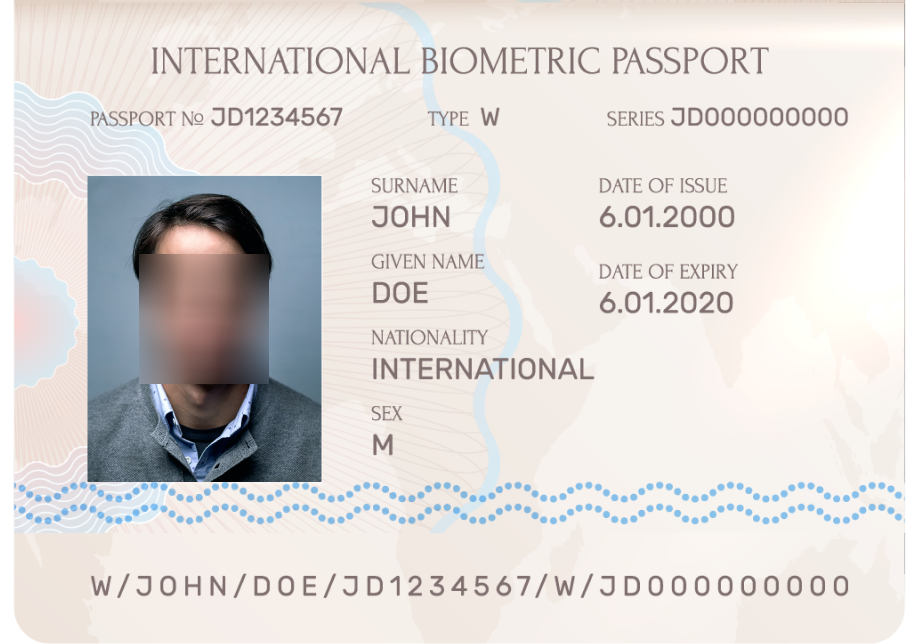
DOCSCAN handles common orientation and rotation issues, but a sharp, evenly lit image remains the best input.
Step 3
Scan a Public Passport Image with Python
Use GET when the source image is available at a public URL. This example scans the PixLab passport specimen and disables face cropping because it only needs document fields.
Install the dependency:
python -m pip install requestsCreate scan_passport_url.py:
import os
import requests

endpoint = "https://api.pixlab.io/docscan"

params = {
    "img": "https://pixlab.io/id-scan-api/passport_sample.png",
    "type": "passport",
    "facecrop": "false",
    "key": os.environ["PIXLAB_API_KEY"],
}

response = requests.get(endpoint, params=params, timeout=30)
reply = response.json()

if reply.get("status") != 200:
    raise RuntimeError(reply.get("error", "DOCSCAN request failed"))

fields = reply.get("fields", {})

print("Document type:", reply.get("type"))
print("Full name:", fields.get("fullName"))
print("Document number:", fields.get("documentNumber"))
print("Issuing country:", fields.get("issuingCountry"))
print("Date of birth:", fields.get("dateOfBirth"))
print("Expiry date:", fields.get("dateOfExpiry"))
Run the script:
python scan_passport_url.pyUse .get() when reading response fields. Not every document contains every field, and the available values vary by document type and issuing country.
Step 4
Upload a Local Passport or ID Image with Python
For private local files, use a multipart/form-data POST request. The image goes in the file field, while the API key and document settings are sent as form data.
import os
import requests

endpoint = "https://api.pixlab.io/docscan"
image_path = "./passport.jpg"

with open(image_path, "rb") as image_file:
    response = requests.post(
        endpoint,
        files={
            "file": ("passport.jpg", image_file, "image/jpeg"),
        },
        data={
            "key": os.environ["PIXLAB_API_KEY"],
            "type": "passport",
            "facecrop": "false",
        },
        timeout=30,
    )

reply = response.json()

if reply.get("status") != 200:
    raise RuntimeError(reply.get("error", "DOCSCAN request failed"))

fields = reply.get("fields", {})
print("Scanned document:", reply.get("type"))
print("Available fields:", sorted(fields.keys()))
For a national ID card or driver's license, change type and include the issuing country when required:
data={
    "key": os.environ["PIXLAB_API_KEY"],
    "type": "idcard",
    "country": "France",
    "facecrop": "false",
}
Use the country value documented in the supported ID documents and countries list.
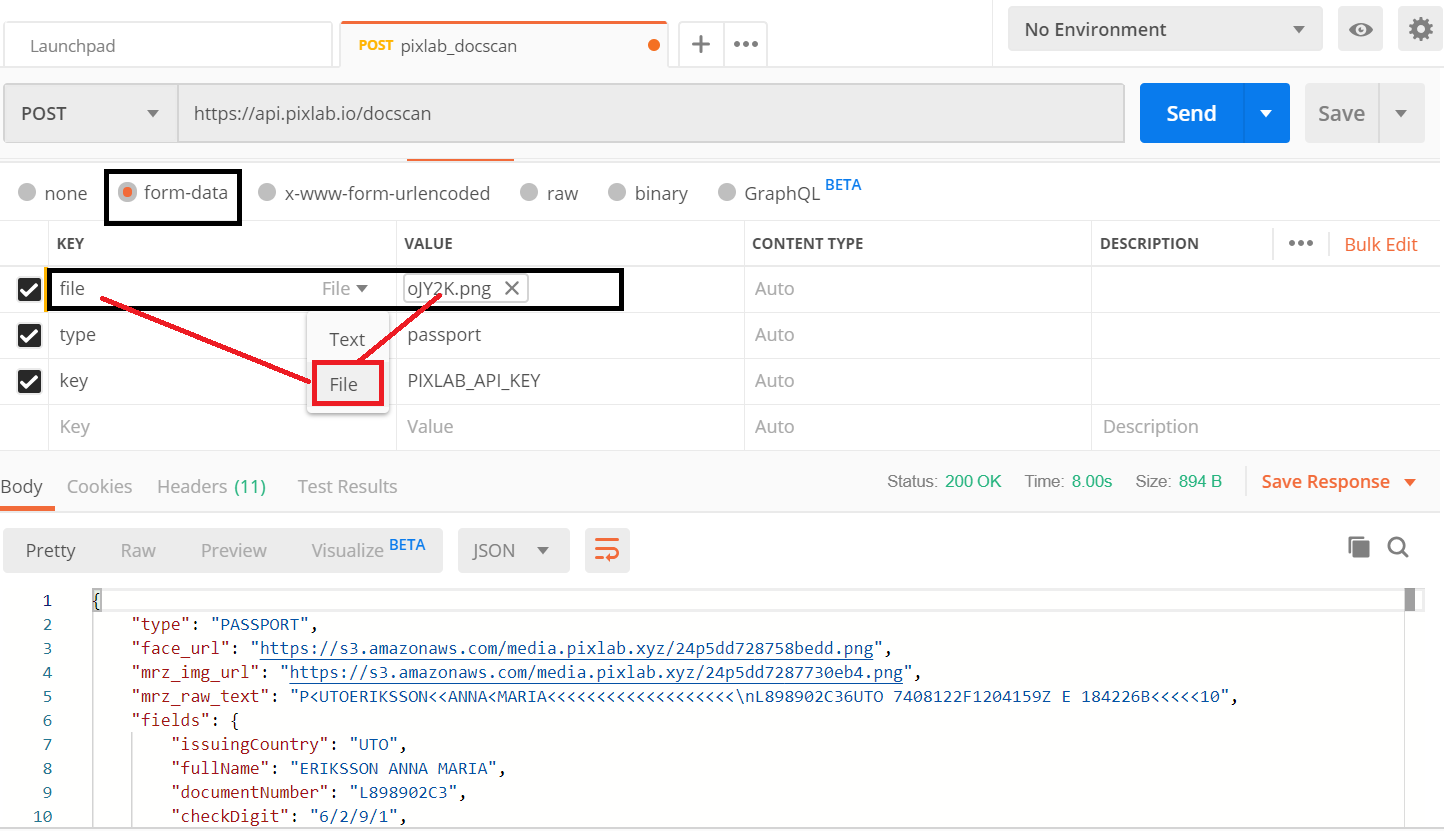
See the DOCSCAN HTTP parameters for current request options.
Step 5
Upload an ID Document with Server-Side JavaScript
The same direct-upload flow works with the built-in fetch, FormData, and Blob APIs in Node.js 18 or newer. Create scan-id-document.mjs:
import { readFile } from "node:fs/promises";

const endpoint = "https://api.pixlab.io/docscan";
const apiKey = process.env.PIXLAB_API_KEY;

if (!apiKey) {
  throw new Error("PIXLAB_API_KEY is not set");
}

const image = await readFile("./passport.jpg");
const form = new FormData();

form.append("file", new Blob([image], { type: "image/jpeg" }), "passport.jpg");
form.append("key", apiKey);
form.append("type", "passport");
form.append("facecrop", "false");

const response = await fetch(endpoint, {
  method: "POST",
  body: form,
});

const reply = await response.json();

if (reply.status !== 200) {
  throw new Error(reply.error || "DOCSCAN request failed");
}

const fields = reply.fields || {};

console.log({
  type: reply.type,
  fullName: fields.fullName,
  documentNumber: fields.documentNumber,
  issuingCountry: fields.issuingCountry,
  dateOfExpiry: fields.dateOfExpiry,
});
Run it from a terminal where PIXLAB_API_KEY is already defined:
node scan-id-document.mjsStep 6
Read the Structured JSON Response
A successful DOCSCAN request returns JSON. The exact fields depend on the document, but a passport response can follow this structure:
{
  "status": 200,
  "type": "passport",
  "face_url": false,
  "mrz_raw_text": "P<UTO...",
  "fields": {
    "fullName": "SPECIMEN HOLDER",
    "issuingCountry": "UTO",
    "documentNumber": "SAMPLE123",
    "dateOfBirth": "1990-01-01",
    "dateOfExpiry": "2030-01-01",
    "nationality": "UTO"
  }
}Important response properties
status:200indicates success. Other values indicate an error.type: The scanned document type.fields: Available normalized values extracted from the document.mrz_raw_text: Raw MRZ text for supported passports and visas.face_url:false, a Base64-encoded PNG, or a URL in your connected AWS S3 bucket, depending on face-crop configuration.error: Error information whenstatusis not200.
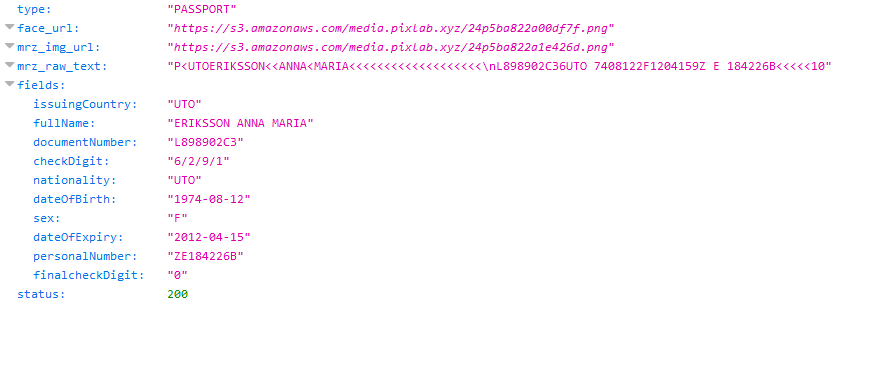
Do not assume every key will be present. Build around the fields required for your workflow, validate them, and provide a review path when important data is missing or unclear.
Supported Document Types
DOCSCAN supports more than 11,000 MRZ and non-MRZ document types from over 200 countries and territories. Common type values include:
| Value | Use it for |
|---|---|
passport | Passports and ICAO machine-readable travel documents. |
idcard | National IDs, resident cards, citizen cards, and similar government IDs. |
driver_license | Driver's licenses with or without an MRZ. |
visa | Machine-readable visas. |
birth_certificate | Supported birth certificates. |
death_certificate | Supported death certificates. |
unknown | Automatic document-type inference on eligible Team and Enterprise plans. |
Check the supported ID documents and countries directory before deployment because required values and coverage can vary by document type and country.
Optional Face-Crop Output
Face extraction is optional. Choose the output that fits your application:
- Set
facecrop=falsewhen you do not need a face crop. - Set
faceblob=trueto receive a transient Base64-encoded PNG in the response. - Connect your own AWS S3 bucket through the PixLab Console when you need a persistent URL. The extracted image is written directly to your bucket.
PixLab does not provide persistent PixLab-hosted storage for face crops. Your application controls persistent storage through its own connected S3 bucket.
Privacy and Document Retention
DOCSCAN processes submitted images and extracted fields in volatile memory. Uploaded images, extracted fields, and document-content logs are automatically deleted immediately after processing and are not retained on PixLab systems.
If persistent face-crop output is enabled, the crop is stored in the AWS S3 bucket connected and controlled by your organization. Review the PixLab Privacy Policy and apply your own retention, access-control, encryption, and deletion policies to data stored in your systems.
Avoid placing document fields in ordinary application logs, error trackers, analytics events, or debugging output.
Scan an ID Document from a PDF
DOCSCAN accepts images rather than complete PDF files. For an ID document supplied as a PDF:
- 1Convert the required page to an image with the PixLab PDFTOIMG endpoint.
- 2Submit the generated image URL with a DOCSCAN
GETrequest, or upload the converted image withPOST. - 3Process the returned JSON in the same way as any other DOCSCAN response.
Convert only the pages required by your workflow and avoid retaining intermediate images longer than necessary.
Production Integration Checklist
- Keep the API key in a server-side secret store or environment variable.
- Use HTTPS for every request.
- Validate the top-level
statusfield before reading data. - Treat document fields as optional unless your application confirms they are present.
- Set request timeouts and separate network failures from API errors.
- Retry only temporary failures with bounded exponential backoff.
- Review important fields when image quality is poor or required data is missing.
- Do not log document images, MRZ text, face crops, or personal fields.
- Use queues and workers for large batches while respecting account limits.
- Test every document type and issuing country your application supports.
Troubleshooting Common DOCSCAN Requests
The API returns a non-200 status
Read the error field in the JSON response. Confirm that the API key, document type, country, and image input are valid before retrying.
Important fields are missing
Check the source image for blur, glare, low resolution, cropped edges, or unreadable text. Available fields vary by document type and by the information printed on the document.
An ID card is not classified correctly
Send the specific type and country when known. Automatic inference requires more processing and is available only on eligible plans.
face_url is false
Confirm that face cropping is enabled. Persistent URL output also requires an AWS S3 bucket connected through the PixLab Console. Use faceblob=true for a transient Base64-encoded PNG.
The source document is a PDF
Convert the relevant page to PNG or JPEG with PDFTOIMG, then send the resulting image to DOCSCAN.
FAQ
Passport and ID Scanning API Questions
What documents can I scan with the DOCSCAN API?
DOCSCAN supports more than 11,000 document types from over 200 countries and territories, including passports, national ID cards, driver's licenses, visas, residence permits, birth certificates, and death certificates. Support includes MRZ and non-MRZ documents.
Can I upload a passport or ID image directly to DOCSCAN?
Yes. Send a multipart/form-data POST request with the document image in the file field. If the image is already publicly accessible, you can instead send its URL through the img parameter in a GET request.
What data does DOCSCAN return?
DOCSCAN returns structured JSON containing the detected document type, available normalized fields, raw MRZ text for supported travel documents, and optional face-crop output. Available fields depend on the document and may include full name, document number, issuing country, date of birth, expiry date, address, nationality, and issuing date.
Does PixLab retain uploaded ID document images or extracted data?
No. DOCSCAN processes submitted images and extracted fields in volatile memory. PixLab automatically deletes them immediately after processing and does not retain uploaded images, extracted fields, or document-content logs.
Can DOCSCAN scan a PDF containing an ID document?
DOCSCAN accepts document images. Convert each required PDF page to an image first with PixLab PDFTOIMG, then submit the generated image URL with GET or upload the image directly with POST.
How can DOCSCAN return an extracted face crop?
DOCSCAN can return a transient Base64-encoded PNG when faceblob is enabled. For persistent URL-based face output, connect your own AWS S3 bucket through the PixLab Console so the crop is written directly to your storage.
Build with DOCSCAN
Start Scanning ID Documents
Start with the 7-day free trial, create your API key, and run the first request against a specimen document before connecting DOCSCAN to your application.