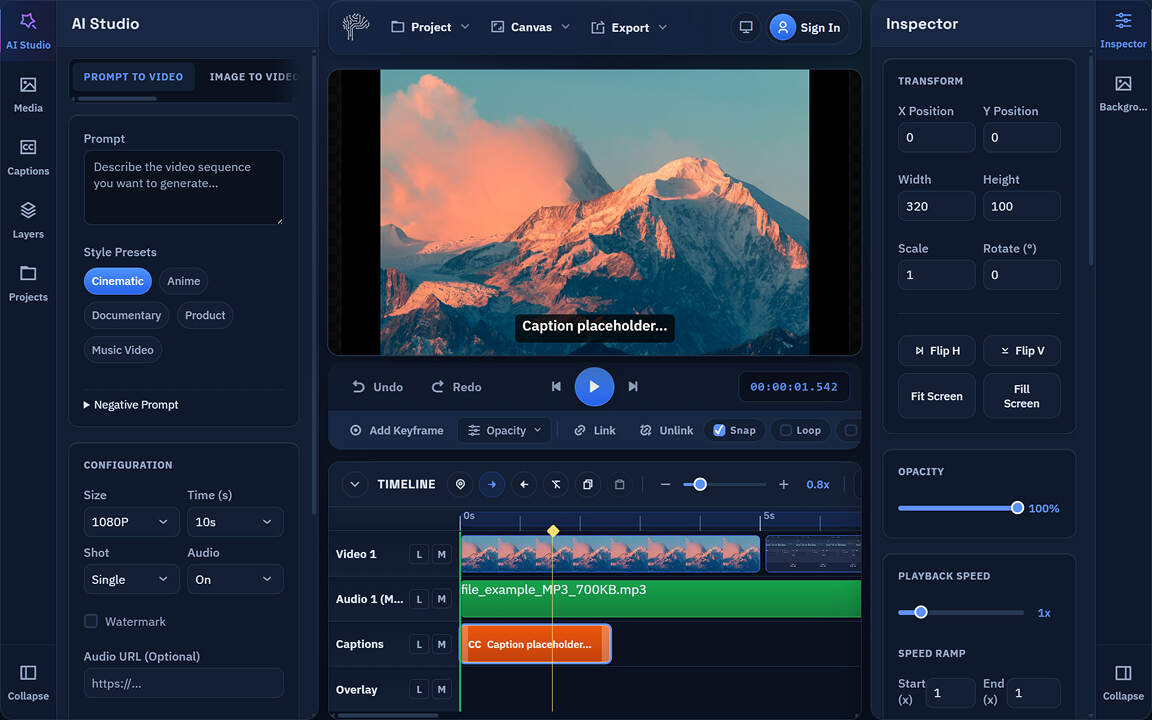
What Is PixLab Video Editor?
PixLab Video Editor ↗ is a browser-based video editor built for fast production across creator, marketing, and product teams, especially for short-form content, captions, subtitles, and text-led social videos. Common use cases include:
- Instagram Reels
- YouTube Shorts
- Instagram Stories
- Marketing clips
- Product demos
- Captioned videos
Open the Editor and Start a New Project
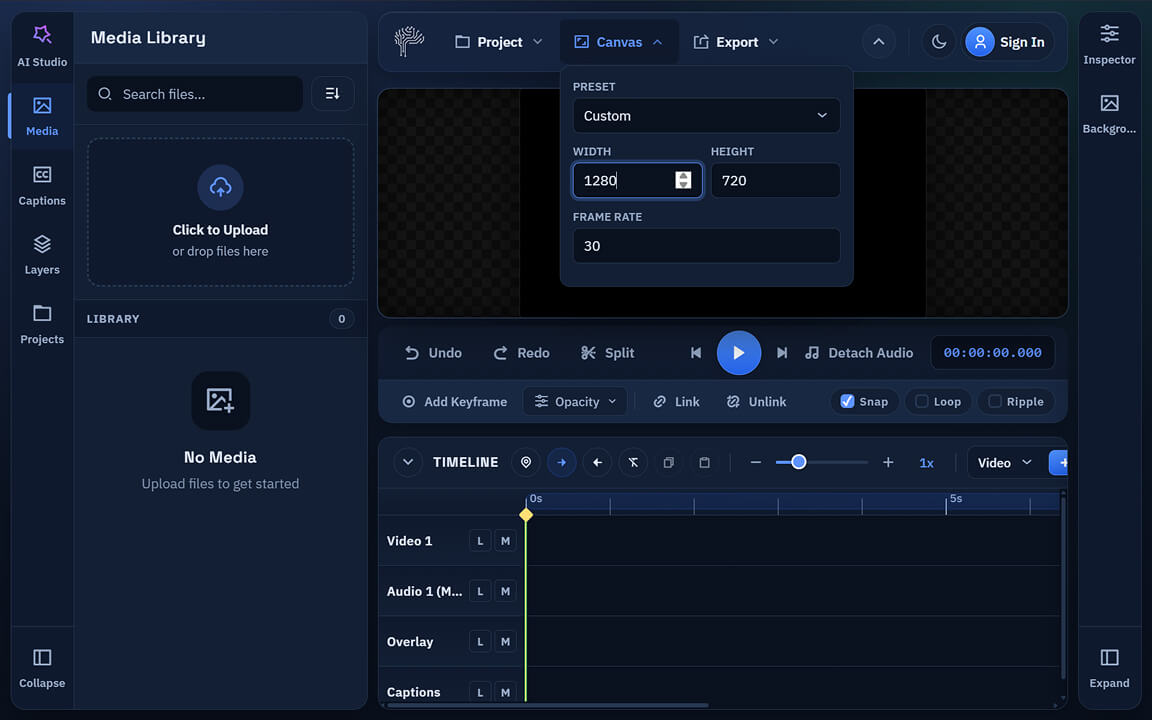
Setting up your project correctly from the start makes aspect ratio, export settings, and platform delivery much easier to manage later.
- 1. Open video.pixlab.io ↗.
- 2. Set your project width, height, preset, and frame rate.
- 3. Create or rename your project if needed.
Recommended project sizes:
Import Video, Audio, or Images
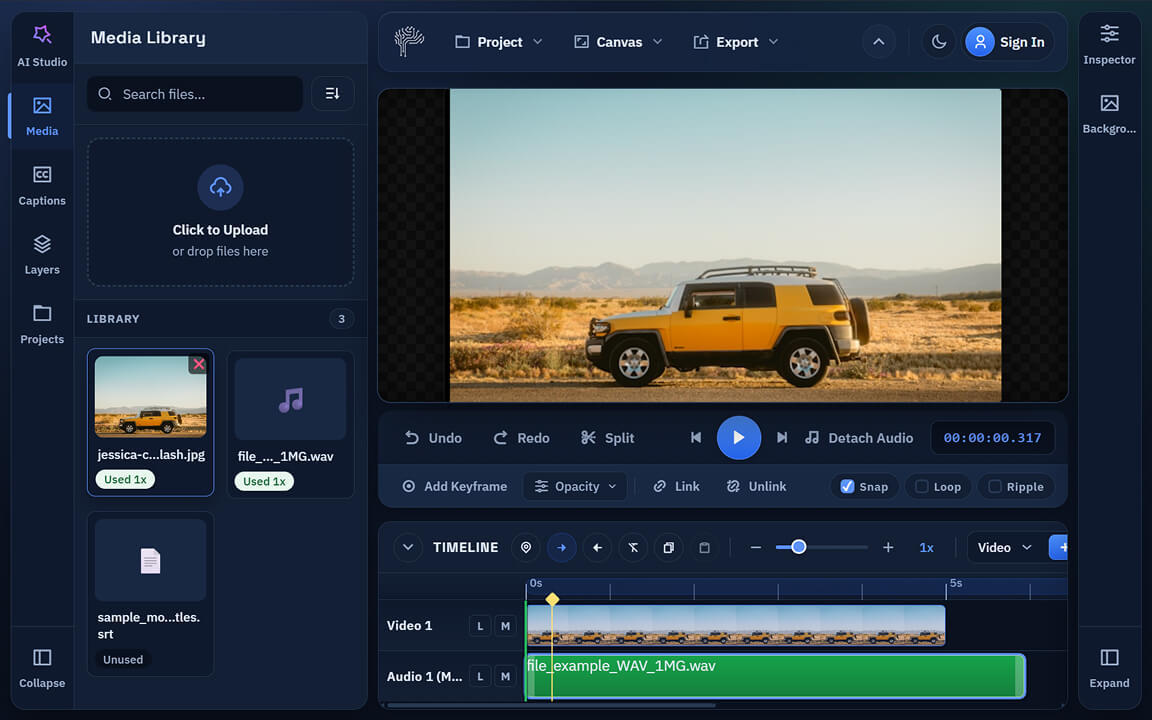
- 1. Open the media section.
- 2. Upload the files you want to use.
- 3. Add video, audio, or images to the timeline.
For most workflows, the starting pattern is simple: import a video, place it on the timeline, then start trimming and layering assets.
Supported Assets
- Video Clips MP4, WebM
- Audio Files MP3, WAV
- Images JPG, PNG
- Subtitles .SRT
Trim and Split a Video
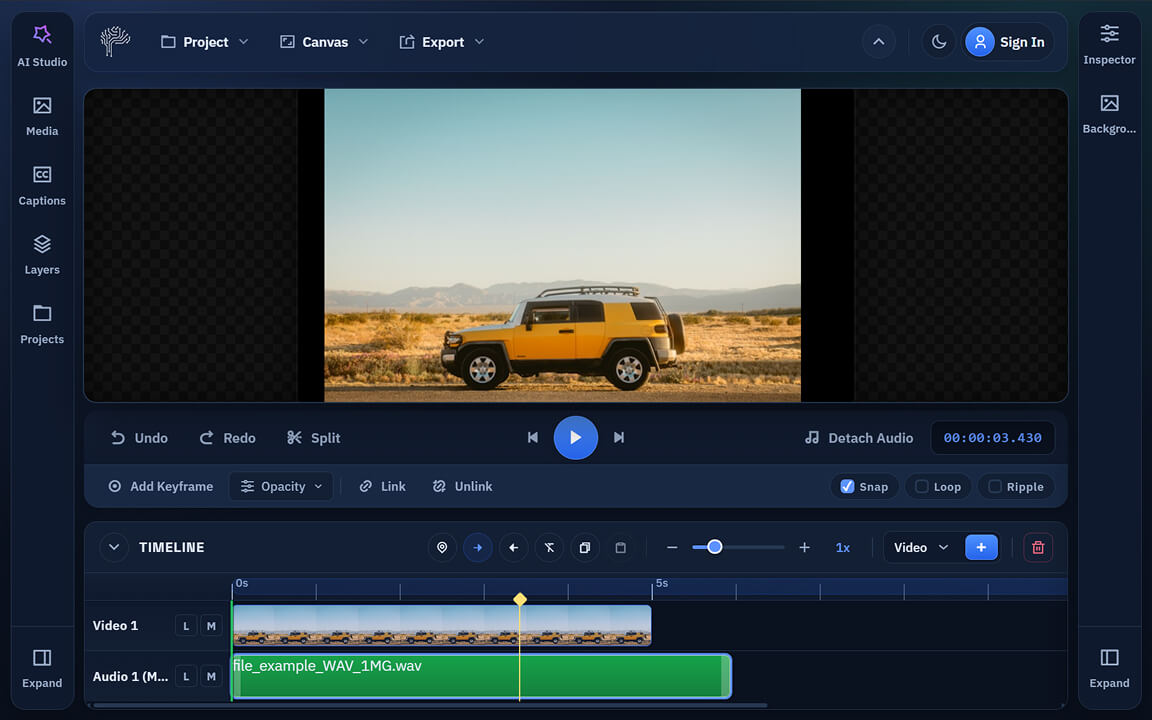
To make a fast edit in PixLab Video Editor ↗:
- 1. Click the clip on the timeline to select it.
- 2. Use the split action (scissor icon or keyboard shortcut) to divide the clip.
- 3. Delete unwanted sections or rearrange clips to build your story.
This is the standard workflow for:
Add Text Overlays
PixLab includes built-in text overlay tools designed specifically for short-form editing. You can create:
- hook text
- callouts
- lower thirds
- title cards
- promo overlays
Adding Text
- 1. Open the text or captions area.
- 2. Type your text in the inspector.
- 3. Adjust font, size, color, shape, alignment, and animation.
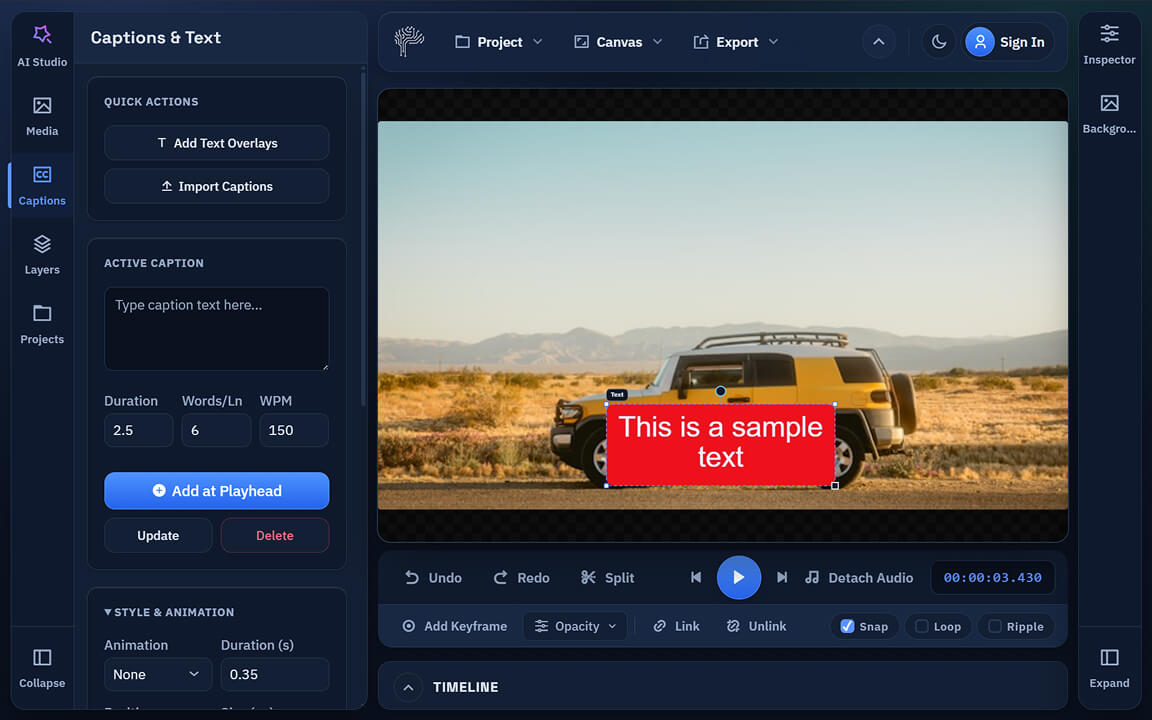
Moving Text on Canvas
- 1. Select the text clip.
- 2. Click the text box visually on the canvas.
- 3. Drag it to a new position.
- 4. Use the handles to scale or rotate when needed.
This is useful for creators who want faster visual placement instead of manually entering coordinates.
Use Custom Fonts
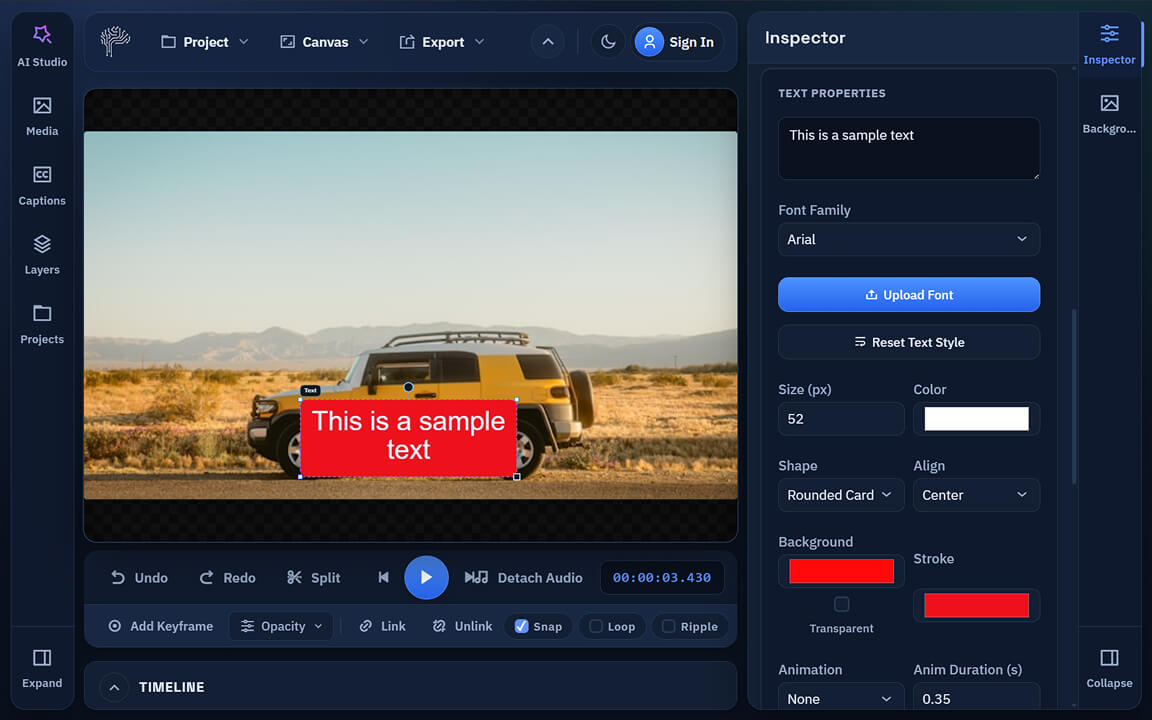
- 1. Select a text clip.
- 2. Open the text properties.
- 3. Click
Upload Font. - 4. Choose your font file (.TTF, .OTF).
- 5. Apply it from the font dropdown list.
This helps you create branded videos directly in the browser without leaving PixLab Video Editor.
Add Captions and Subtitles
Captions are one of the most important parts of social video performance. With PixLab, you can add caption clips, style subtitle text, import subtitle files, and export captions as .srt.
Basic subtitle workflow:
- 1. Open the captions panel.
- 2. Add or import captions.
- 3. Review timing on the timeline.
- 4. Adjust text style, font size, color, and placement.
-
5. Export the final video or export the
.srtfile separately.
If you are looking for an online subtitle editor or caption editor for social video, this is one of PixLab's strongest workflows.
Use Text and Caption Animation Presets
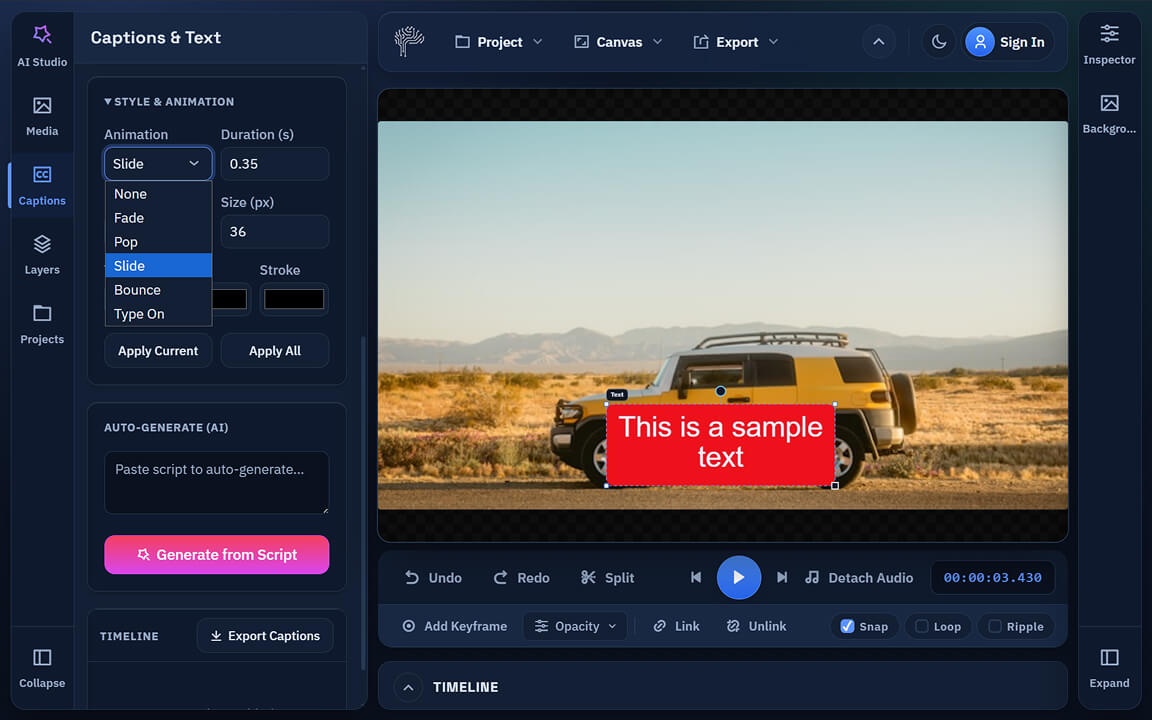
PixLab includes animation presets for text and caption clips. This is useful for making short-form content more dynamic without needing complex motion graphics tools.
Available preset types:
- Fade
- Pop
- Bounce
- Slide up
- Type on
To apply one:
- 1. Select a text or caption clip.
- 2. Open the animation controls.
- 3. Choose a preset.
- 4. Adjust the animation duration.
This is useful for making short-form content more dynamic without needing complex motion graphics tools.
Use Markers and In/Out Points
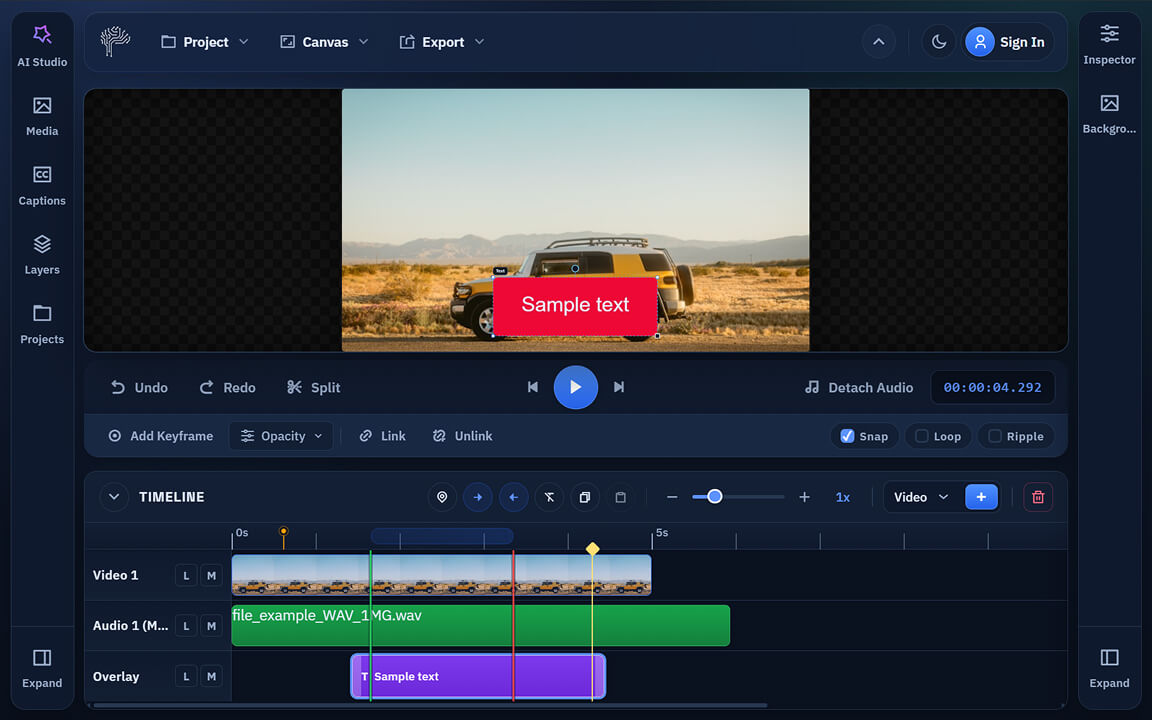
Markers and export ranges help speed up editing. They are especially helpful when you want to create multiple social cuts from one source video.
- 1. Place markers while previewing (mark important moments).
-
2. Set
InandOutpoints around the section you want to export. - 3. Export only that range.
Resize or Compress a Video
PixLab now includes a browser-side resize and compression flow for imported videos. This is useful when you need a smaller MP4, want to prepare vertical or square social versions, or need a faster upload-friendly render without opening another tool.
Resize in the editor
- 1. Import a video into the Media library.
- 2. Open the
Exportmenu. - 3. Choose
Resize / Compress Video. - 4. Pick a target size such as 1080 x 1920, 1080 x 1080, 720p, or a custom size.
- 5. Select a compression profile and download the resized MP4.
When to use it
- • Prepare a vertical version for Reels, Shorts, Stories, or TikTok.
- • Create a square social version from a landscape source.
- • Reduce file size before sharing or posting.
- • Keep the workflow inside PixLab instead of switching tools.
For very large files, unusual codecs, or bulk conversions, PixLab still links to PixLab Convert ↗ as a fallback.
Export Your Video
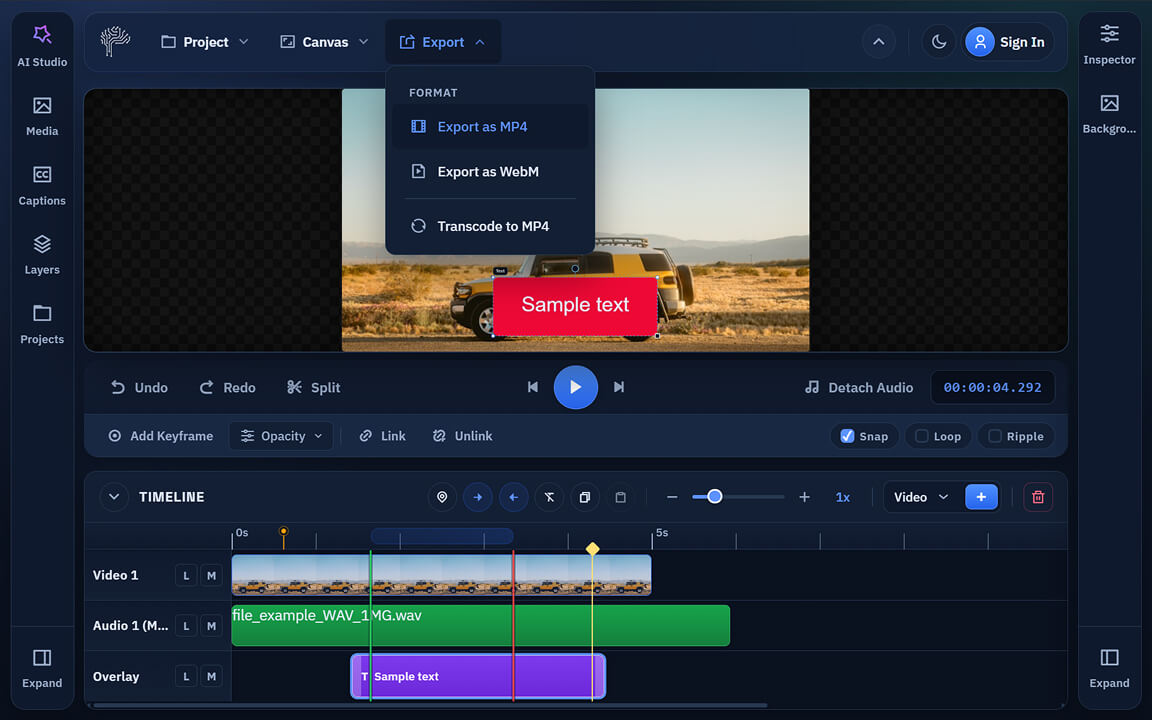
PixLab currently supports MP4 and WebM export. Use MP4 for the broadest compatibility across social platforms and websites.
To export video:
- 1. Review your timeline.
- 2. Make sure your text, captions, and media are in place.
- 3. Set an export range if needed, or resize first if you want a dedicated social dimension.
-
4. Choose
Export as MP4orExport as WebM.
Exporting Captions (SRT)
Useful for YouTube uploads, translations, and archives.
- 1. Go to the captions section.
-
2. Click
Export Captions. -
3. Save the generated
.srtfile.
Best Practices for Short-Form Video
To get better results from your edits:
Start with a strong first frame or opening line to hold attention early.
Keep your captions highly readable with contrasting colors and easy-to-read typography.
Use short text overlays instead of long paragraphs to maintain visual focus.
Trim aggressively. Dead silence ruins retention for short-form video.
Export a vertical format (1080x1920) for natively playing on TikTok, Reels, Stories, and Shorts.
Common PixLab Use Cases
Creators use PixLab Video Editor ↗ for:
Frequently Asked Questions
Is PixLab Video Editor an online video editor?
Yes. PixLab runs in your browser, so you can edit without installing separate desktop software. You can launch it at video.pixlab.io ↗.
Can I add subtitles in PixLab?
Yes. PixLab supports practical subtitle workflows, including importing SRT files, writing captions manually, and exporting SRT output.
Can I upload custom fonts?
Yes. Text overlays support custom font uploads (such as TTF and OTF), so you can match your brand style in each edit.
Can I resize or compress a video in PixLab?
Yes. PixLab includes a browser-side resize and compress flow for imported videos, with presets for social formats and smaller MP4 output. For very large or awkward files, PixLab Convert is still a good fallback.
Can I export MP4 from PixLab?
Yes. The editor exports to MP4 and WebM. Export runs in-browser with local processing.
Start Editing in PixLab Video Editor
If you need a clean browser video editor for short-form content, subtitles, text overlays, and fast resizing for social delivery, you can start editing in seconds.